Welcome to ClubRunner's BlogSpot


Welcome to ClubRunner's BlogSpot - the place to stay on the pulse of hot off the press news updates about product developments, service announcements, local events and so much more!

Also, you can initiate discussions and share information among fellow ClubRunner users.

Your feedback is always welcome and necessary to help us make ClubRunner better. We want to know what you like, what you don't and what's on your wish list. Please let us know how we can enhance our service.
Showing posts with label website designer. Show all posts

Friday, October 20, 2017

Introducing Lions branded website colors

Have your club's website mirror the Lions brand with our newest website theme color variations. Within our Community & Vision themes, you'll now see two new color options:
  • Yellow and Blue (Light)
  • Blue & Yellow (Bright)
Selecting these new options will automatically update your font, menu, primary and secondary call to action buttons, and your club will be able to better promote the Lions brand.

How to switch to the new colors


Updating your website is easy and doesn't require you to rebuild your content at all.
  1. Go to the Website Designer and click on Themes on the left panel
  2. Select either color option under the Community or Vision theme
  3. Preview your new look and click on Publish to go live
Both Vision and Community are part of our next-generation themes that incorporate modern website design elements with mobile-view support, leaving you with a professional website that makes an impact.

For help on updating your ClubRunner website, check out our Next-Gen Website Themes Help Guide.

Friday, July 14, 2017

Start a conversation right on your website

Introducing tags and commenting for your stories


 Increase reader engagement by allowing your members to start a conversation directly on your website, and voice their opinions through the new built-in comments feature.

Available on Next-Generation themes only, all stories now include two additional options to help you further engage your audience: comments and tags.


Comments

Enabling comments will allow your members to contribute to the stories published with their own opinions and suggestions. Through the 'like' and 'reply to' capabilities, members even have the ability to interact with each other on a comment level, creating threaded replies.

Simply check of "Enable Comments" when creating or editing your story to display the comments area. Please note, that members must be logged in, in order to leave comments.


Once comments are enabled, you will also see two new tabs appear on your stories list page - 'Latest' & 'Most Popular'. Stories with the most amount of interactions (likes & comments) will appear on the Most Popular tab, making it easy for readers to join the conversation.

Tags


Often found on blogs, tags are keywords associated with a story's content, meant to categorize your stories, as well as help with search results. 

Simply identify a few tags that the story relates to, and publish. On your Stories list page, visitors will see a list of existing tags and a number to signify how many stories fall under them. Clicking on a tag will filter the list of stories to display the most relevant ones.

Now, you can turn your stories into blogs! This is just one of the enhancements we've made to help you better engage your members. There's still lots more on the way.

Friday, March 31, 2017

Introducing Impression, our newest Rotary Approved Website Theme

Modern, fresh and mobile responsive, our line up of next-generation themes were designed to elevate the look of your website.

Recently, we released two new Rotary approved templates, named Vision and Community and are happy to release a third. Introducing Impression, a new RI approved theme which is the most integrated with the new visual and digital identity guidelines.

Available in 8 color variations, this theme features a floating menu and automatically also adds your club name on the navigation menu, next to the navbar icon to keep your branding in place.

Ready to give your website a facelift?

Updating your website is free, easy and takes only a few clicks.

  • Go to Website Designer and click on Themes on the left panel
  • Select the Impression theme from the library and your color variation.
  • Click on Publish to go live

That's it! For detailed instructions on designing your website, check out our detailed help guide. Prefer we switch your theme for you? Just send in your request to our support team and we'll be happy to help.

Did you know that you only have 5 seconds to capture the attention of your website visitors? Make it count with a website that speaks to people of all ages, works on all devices and promotes your club in the best way possible. 

Friday, February 3, 2017

Fresh modern looks for your club

Since the release of our next-gen themes, more than 1,000 of you have made them your own. From adding custom carousel images and videos to advanced customization, such as uploading your own CSS stylesheet, the feedback we've received so far has been great.

There is nothing better than hearing that your refreshed and modern website helped you attract more members and boost your public image.

Looking for some inspiration for your own ClubRunner website? Check out a few websites using our Next-Gen themes!


Rotary District 9980
Rotary District 5010
Rotary Club of Chilliwack Fraser
Cosmopolitan International
Rotary Club of San Diego Downtown Breakfast
Rotary District 5180

Stay tuned for more website templates coming soon! If you haven't yet checked these themes out, head on over to the Theme Library to see what you're missing! Download our help guide to get started.

How do I update my site?
  1. Go to Website Designer and click on Themes on the left panel
  2. Select either Vision or Community from the library and check out the preview. Change the color scheme by clicking on the various buttons below the thumbnail
  3. Click on Publish to go live

Thursday, January 12, 2017

Revamp your website with our new Rotary approved website themes

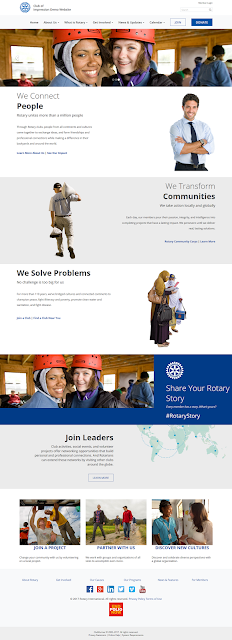
Earlier this week, Rotary International launched their new website, and also released their updated visual identity guidelines for clubs and districts. Clubs are encouraged to adopt Rotary's new voice and visual identity, as part of an initiative to strengthen the brand.

As an Official Licensee, we're excited to help you incorporate this new brand into your club and district by releasing two new Rotary approved themes that consistently reflect the new colors, fonts and design elements.

Introducing our new official Rotary approved website themes


Working in conjunction with the Public Relations and Identity team at RI, we're proud be the first vendor to release two new website themes that are tightly integrated with Rotary's brand outlined in the updated visual and digital identity guidelines.

Introducing Vision and Community, two new Rotary approved mobile-responsive next-generation themes available in 7 different color variations each! Better showcase your work, the impact your club makes in the community, and engage with your audience like never before.

Ready to give your website a facelift?


Updating your website theme is simple, free, and doesn’t require you to rebuild your content:

  1. Go to Website Designer and click on Themes on the left panel
  2. Select either Vision or Community from the library and check out the preview. Change the color scheme by clicking on the various buttons below the thumbnail
  3. Click on Publish to go live!

But, this is just the beginning. Stay tuned for more templates, design elements including animation, pre-designed widgets, content pages and more.

Friday, December 16, 2016

Brighten up your website with this new color

Our focus has always been to help you with your public brand. What you portray as your image is exactly how people perceive your club to be, and it plays a huge role in your PR efforts. It starts with your website, a place to showcase your own uniqueness and clubs identity.

Color has a significant impact on your branding. It has to resonate with your audience. Introducing our all-new Cranberry color variation for the Next-Generation Millennium theme. The bright hues are bound to brighten up your homepage resulting in a vibrant yet professional website. 

The Cranberry theme can be found in the website theme library, as an option under the Millennium theme. To switch to it: 

1) Go the Website Designer and then click on Themes
2) From the library, locate the Next Gen theme titled Millennium
3) Select this new color variation and click on publish

Best of all, this new color palette is in line with the Visual Identity guidelines for Rotaract clubs. You'll soon see the release of many new and modern themes to help get where you want your visual identity to be. Stay tuned!

Friday, December 9, 2016

Buttons on the menu


You asked us for a way to showcase a call to action from the navigation menu itself. A way to
make your menu item stand out from the rest, and that's exactly what we've done.

You can now add buttons directly onto your menu to easily draw attention to a link or secondary page.

To add a button on the menu:

1) Click on the Website Designer 3.0 link on the
Admin page
2) Click on Edit Menu
3) Either edit or add a menu item
4) Fill in the fields as required, and select your link type
5) Select either the Primary Button or Secondary Button option from the Link Style section
6) Save and publish the menu

There are two styles that you can add. The primary button style will apply your theme's primary color onto the button, whereas the secondary style option will apply the theme's secondary color. Please note that buttons only appear on the main level of the menu for Next-Gen themes only.

There are a lot of improvements coming soon to help you elevate the look of your website, stay tuned. In the mean time, please continue to share your feedback and suggestions with us and add your feature requests to our wishlist.

Monday, October 17, 2016

Top Search Terms in ClubRunner

As you may recall, we recently added a search function to all ClubRunner websites to give visitors the ability to search for what they were looking for. So we took a look across the board to see what the top search terms were, and found that irrespective of where your club is located in the world, people were looking for the same things. Here are the top 10 most popular keywords (from highest to lowest):

1) Scholarships
2) Speakers
3) Contact
4) Youth Exchange
5) Grants
6) RYLA
7) Interact
8) Meeting Address
9) Membership
10) Club Executives

What does this mean?

We've always said that your website is the hub where visitors come to learn more and gather information. If they have to search for topics of interest, that could indicate that these items are difficult to find. So, what actions can you take?

Learn what's popular


First, begin by analyzing your website traffic reports. If you have not yet linked your Google Analytics account to your ClubRunner site, you can learn how by clicking here. These reports will tell you exactly where your visitors are going and how long they're staying on a page. It will also give you a good sense of whether the information you want found on your site is actually being accessed.


Making use of the navigation menu

Content is king, so it's important that it's accessible. If we look at the most popular search terms, we can immediately group many of them into one category - 'Programs'. Consider adding this as a menu item on your navigation bar. Under it, you can link to custom or site pages and even documents about your scholarship programs and Grants, and more. If your club has one main flagship program, consider just making that its own menu item.


How easy is it to get in touch with your club? Is there a Contact Us link prevalent on the home page? Did you know that you can easily link to the built-in Contact Us page or create your own custom page, complete with the club's mailing address, meeting address, venue map and more?


The wonderful world of widgets

There are so many things you can accomplish with both the built-in and custom widgets. From displaying upcoming events to showcasing your club sponsors; from displaying upcoming speakers to displaying a list of all your club executives and directors, widgets let you share important information throughout your website. For a brief overview of all the built-in widgets available, click here.

For important public documents such as those related to scholarship programs, did you know you can showcase them on the Download Files widget?

Next, make these widgets stand out by customizing their properties. Color plays a huge role in how people react to a call to action. We are naturally attracted to design aesthetics that stand out from the page. Add some flavor to any widgets that you believe should stand out. Learn how


Everything related to membership

One of the most important things to share with your website visitors is how to get in touch with your club, where you meet, who your executives are and how they can join.

We took a look at a handful of websites and found that this type of information was actually quite difficult to find. Does your club have a page on exactly what it takes to join your club? What it means to be a member? How to join? The costs associated with membership?

Create a custom page to share all of this information. Then, showcase it front and center through the Club Information widget on your home page. Did you know that you can add custom links to this widget? That means you can direct visitors to any internal or even external page easily.


There are many ways to share information with your visitors without cluttering your homepage which in turn becomes overwhelming for the reader. With a little bit of creativity and analysis, it's easy to design the optimal structure to make your website a great source of information for both members and non-members alike.

Club Information Widget - Tip of the Week!

Did you know you can customize the Club Information Widget with custom links?

Not many people are aware that you have the ability to add custom links within the Club Information widget to either link to any external website or your own site/custom pages.

Navigate to the Website Designer and then to the Club Info widget's property page. Towards the bottom of the page, under the Content Properties section, you will see two fields called "Custom link URL" and "Custom link Text". Simply add the link you want to direct visitors to and add the text you want displayed as the link within the widget.

This option is great for clubs to share to a site or custom page with directions to the club meeting location, instructions on how to join the club or even the club's Facebook or Twitter page, etc.

Friday, September 16, 2016

Highlight Upcoming Day Speakers!

You have speakers join you for virtually every meeting and so you asked for a better way to showcase them on your site. From being able to display their picture to having some way to showcase them on the homepage, we've made it possible!

We've added new settings within the Speakers widget property that let you better promote your upcoming speakers. Now, when you go into the Speakers widget property, you will see three new
settings:
  • Highlight Upcoming Day Speakers
  • Show Photo of Highlighted Speaker
  • Show Description of Highlighted Speaker
To reach the properties page, hover over the speakers widget and click on the cog icon.

By selecting the "highlight" option, the system will automatically apply a background color as per the website theme you are using, to have the upcoming speaker entry stand out.

By selecting the "show photo" option, we will automatically resize and display the picture of the speaker within the Speakers widget itself. Similarly, with the "show description" option, we will show the description that was added to speaker entry on the speakers widget.  This eliminates the need for the visitor to navigate to the Speaker Details page for more information.

These settings will apply to the current day's speaker, and will automatically also apply for all future speakers. Within the coming weeks, you will see more customization options related to showcasing your speakers including being able to define the color of the highlight property.

We're dedicated to improving the ClubRunner system would love to hear your feedback. Please continue to submit your suggestions.

Tuesday, August 23, 2016

Site Highlight: Rotary District 5810


Since we released our next-generation themes (more on the way!), we've seen many clubs, districts and even zones create something unique by ultimately making these themes their own. With the array of page layout and customization options, there is so much you can do to your site to keep it looking unique and unlike others. This month, we're featuring Rotary District 5810 in Texas.

There are many elements that make up good design and we'll go over just a few of them, how District 5810 mastered those elements and how you can too.

Connecting with the visitor

Your website is a hub from where visitors can find all the information they need about your organization and proceed further. It is what connects you with your audience and is your chance to make a good first impression for those trying to learn more about your group. Connecting with the visitor is about forming that impression, creating the journey for the visitor to easily find the information they seek and engaging them.
The role of Districts is to support all of its club members and promote Rotary. As soon as you land on District 5810's website, you notice the carousel banner begins by showcasing what the Rotary family comprises of (Clubs, Rotaract and Interact). As you begin to scroll down, the personal video message from the District Governor both at the beginning and the bottom of the homepage is the perfect representation of attempting to form a connection with the visitor.  The entire website is geared for both members and non-members with information for both to read.

Check out this article to learn how you too can embed a video to your ClubRunner website from YouTube, Vimeo and other such services. This works on stories as well as custom widgets on your homepage and custom/site pages.

White space

Using the "Full Width Top Band + Rest Bands' page layout, they used white space to their advantage by aesthetically breaking their content up into blocks through HTML customization. But you too can achieve a similar look by using the built-in template blocks and tables.


White space is important as it gives your content some breathing room so that text and images together don't make your site look cluttered. By being able to effectively separate and distance the different content blocks/widgets, it becomes easier to allow the text to stand out on it's own.

The perfect balance

Balance refers to many design elements:
  • a balance between imagery and text
  • a balance in the aesthetics
  • a balance of colors
  • a balance in the weight of the elements
  • and more

Today, it's become essential to try and keep your content simple yet informative. Many of us browse websites on our phones while we're on the go, and as a result tend to skim through information. The challenge that all website designs face is how to combat this - how to present informative content in the most effective way possible. District 5810 manages to balance the design by breaking the content blocks into rows and by size using what's known as a grid based layout.

Wondering how you too can create a band similar to the "20 Reasons to Join Rotary" as shown in the image above, without using HTML? Place your custom widget on your homepage, then simply use the editor to add a table. In the table settings, ensure you select 1 row and 1 column, select your background color and keep your table width setting at 100%. Then, simply type in your text into the table and link it to any page you'd want.

With a blend of text, imagery and videos, they make it easy to allow the visitor to get to what they want to read about. Even within each content block, they maintain a balance in the weight of the fonts, size and color so as to not overwhelm the reader.

Bonus tip! When you add widgets to your homepage, did you know that you can control the padding between the text and the widget borders?

Engagement - it's always changing!

This is what keeps the visitors coming back. The best websites are dynamic and are constantly being updated with content to reflect new priorities, showcase the latest projects, activities, and answer the latest questions members and non-members might have. Though this seems obvious, it's difficult to dedicate time to update the website but it doesn't have to be, and there are many benefits of doing so! For example, a website that is regularly updated with newer content is more likely to appear in the top results in search engines like Google and it also signifies that you are an active organization, which will come in handy for membership development.

Helpful tips from the community:

We asked clubs to share some tips on how they work on creating fresh content for their website and here is what they had to say:

  • Page Owner: Consider giving 'page access' to a specific member without granting them access to the entire website. Doing so will allow the member to update the page with fresher content without affecting the homepage design. You can do this with both site pages as well as custom pages.
  • Rotaract Volunteers: We begin forming a relationship with Rotaractors by asking them to volunteer some time for the club. They often help us edit videos from our meetings and club activities so we are able to post these on our site. Bonus? They get to know our club members so well that we know we have new members on the way!
  • Team: We have a team of 4 in charge of the website. They split the duties of writing out meeting minutes, stories for the site, taking pictures at meetings, etc. and then save their content in draft mode on the site during the week. Every week, they just publish their stories, which the bulletin editor adds to the newsletter and sends away. Great because even if one member is away on vacation, we still have a team to fall back on.
  • Source resources: For content, we use all the resources available to us. We share a lot of content from Rotary.org as our main focus is promoting Rotary. From videos to status updates on End Polio now, we always dip into the resources at hand.
  • Involve family: Our club invites children to help volunteer. In Ontario, high school students are required to have 40 volunteer hours under their belt to graduate. We add them as honorary members to our club and they help us with our site - it's a win-win.
What does your club do to keep its site fresh? Click on the banner below to check out District 5810's site.

Friday, July 29, 2016

Tips on improving the appearance of your website

You'll agree when we say that everyone is talking about creating a more modern website. Something that is in line with Rotary branding, speaks to people of all ages, works on all devices and promotes your club in the best way possible. Did you know that our Next-Generation themes offer just that?

In the past, we've shared multiple tips on creating a great website, and with the trends always evolving, there's always something more to cover. Combined with our built-in widgets, you can create a sleek and professional website in no time. So, we start with the design!


Website Appearance: The Next-Generation Look

This is where the fun begins. We recommend checking out our Next-Gen themes, a line up of modern website templates with multiple page layout options. Then, simply select the color pattern and begin making it your own.

Not only are the next-gen themes mobile responsive, they also include new wider page styles with menu navigation above the fold, rotating image carousels, and even homepage options without a formal banner.

Check out a few examples!

http://portal.clubrunner.ca/794
Rotary Club of Chilliwack Fraser
http://portal.clubrunner.ca/6116
Rotary Club of Chicago Lakeview
  
http://www.rotaryoceania.zone/
Rotary Zone 7

Branding

As a Rotary club, it's important to show via your website that you are part of a greater organization such that you are able to promote what Rotary and your club stands for. Of course, at the same time, you also have to showcase your own clubs brand through your positioning statement and value proposition. Essentially, you portray your clubs identity through the branding.

Navbar:

Start by adding your club logo directly where the eyes of the visitor first go - the prime real estate
area, which is everything from the navigation menu till the fold (point at which they have to begin scrolling).

Within the Next-Gen website themes, you have the option to add a navbar brand icon directly on your navigation menu. A navbar brand icon can be any image that represents your club, whether that be a Rotary wheel or your own club logo. It gets added as a link to your menu, which directs visitors to the homepage if clicked.

What are the benefits? Besides the visual enhancement to your website, adding your club logo or an image associated with your club helps promote your brand to your visitors.

How can I add this? Check out the following article which goes over how to add the Navbar Icon.

Tip: Did you know that you can make your own club or district logo using the Logo Creator on Rotary.org's Brand center?

Carousel


What else can you use for branding? To promote your value proposition? Pictures! Consider adding the picture carousel to your homepage.

What are the benefits? A carousel allows you to upload numerous photos along with a caption to entice your visitors. As a Rotary club, you want to showcase your club members, its achievements, activities and reasons for joining. A carousel allows you to do so by giving you the opportunity to showcase more than one topic of item of interest, in the prime real estate area.

Showcasing your members and club activities directly on the homepage adds a personal touch to your site and immediately allows the visitor to relate to the club.

Tip: Always use high resolution photos on your site. If using the carousel, ensure that all images are the same size (height and width).

Use of buttons and colours

Buttons present a degree of interactivity between the visitor of the site and the site itself, encouraging
a call to action. This means the visitors are drawn to it to perform an action. You can add buttons to invite visitors to navigate to the next page, register for an event, donate, etc. The fact that buttons are more prominent than text links means visitors are inclined to see them more.


How do I add buttons in ClubRunner? Within our next-generation themes, links such as the 'Read More' that appear for stories, automatically display as buttons!

You can also add buttons easily via HTML within these themes. Check out this guide to adding buttons to your site.


Tip: Too many buttons on a homepage can be overwhelming and can confuse the reader as to where to click and why. Keep in mind that there is a balance to be maintained when using buttons to create a symmetry between effectiveness and aesthetics.

Pop of color

Once you've selected a color pattern for your website, you can add a splash of color in various areas - useful for when you want a certain widget to stand out. Did you know that you can alter the color and appearance of most widgets simply by editing the widget properties?

Tip: Though it can be tempting to add bright colors, remember to select colors that are inline with your your website colors and those that correlate with the branding of your club. Colors set the tone of what users think of your site - too dull, and visitors might not stay invested enough to stay on the site or read the content. Too bright, and the colors may stray visitors away from important content.

Resources

There are a variety of resources available to add more flair to your website. For royalty free images to add to your carousel, check out:
  • Rotary Brand Center
  • Pixabay
  • Unsplash
  • Getty Images
Always keep the licensing of photos in mind and cite the source you took them from. That being said, it is always best to showcase your own personal club images because they are what you want to display to the community, and it is your own pictures that allow prospective members to relate to your club.

We always say that website templates are like a canvas which you can build on. Whether it be by adding the all-new custom carousel, videos or by updating the CSS stylesheet - the point is to be able to represent your club with a website you can be proud of.

Check out our Next-Generation Website Themes Guide to learn more on adding a modern touch to your site!

Friday, July 15, 2016

Updating the theme logo and menu home icon

We're now two weeks into the new Rotary year and have been receiving a lot of emails on how to update the website. The two most popular questions have been how to update the theme logo and update the menu home icon.

To update your theme logo:

1) Click on the Website Designer and then on the Settings tab
2) Click on the Upload Club Logo link in the Graphics section
3) Upload/Select your image 

That's it! As a reminder, the club logo displays on various sections of your website such as the Meeting Information widget.

To update your home menu icon:
 
1) Click on the Website Designer and then on the Settings tab
2) Click on the Upload Menu Home Icon link in the Graphics section
3) Upload/Select your image 

What is a home menu icon? If you are using a Next-Gen theme, then you have the option to add a a brand icon directly on your navigation menu. A brand icon can be any image that represents your club, whether that be a Rotary wheel or your own club logo. It gets added as a link to your menu, which directs visitors to the homepage if clicked (hence the name, home menu icon).

Preparing for the new year? Join us for our training webinars where we go over each feature found in ClubRunner.


Friday, June 24, 2016

Linking to the new search

A few weeks ago, we announced the new website search feature which we'd added to all websites, right next to the member login link. Wish you could link to the search page from other areas of the site? Now you can!

Link to the search page

You can now link to the new built-in website search page from anywhere on your site. We've included it as an option to link via the navigation menu, links widget as well as any story or custom page.

How do I link to it?
It's been added under the Built-in pages option.
  1. Select the text you want to hyperlink and click on link on the toolbar
  2. Select built-in pages from the drop down menu and then on Search
If adding the search to your navigation menu, give the menu item a title and then select the page from the built in pages option.

Have a suggestion on a feature? Email us your feedback!

Wednesday, April 27, 2016

Visit the ClubRunner Booth in Korea

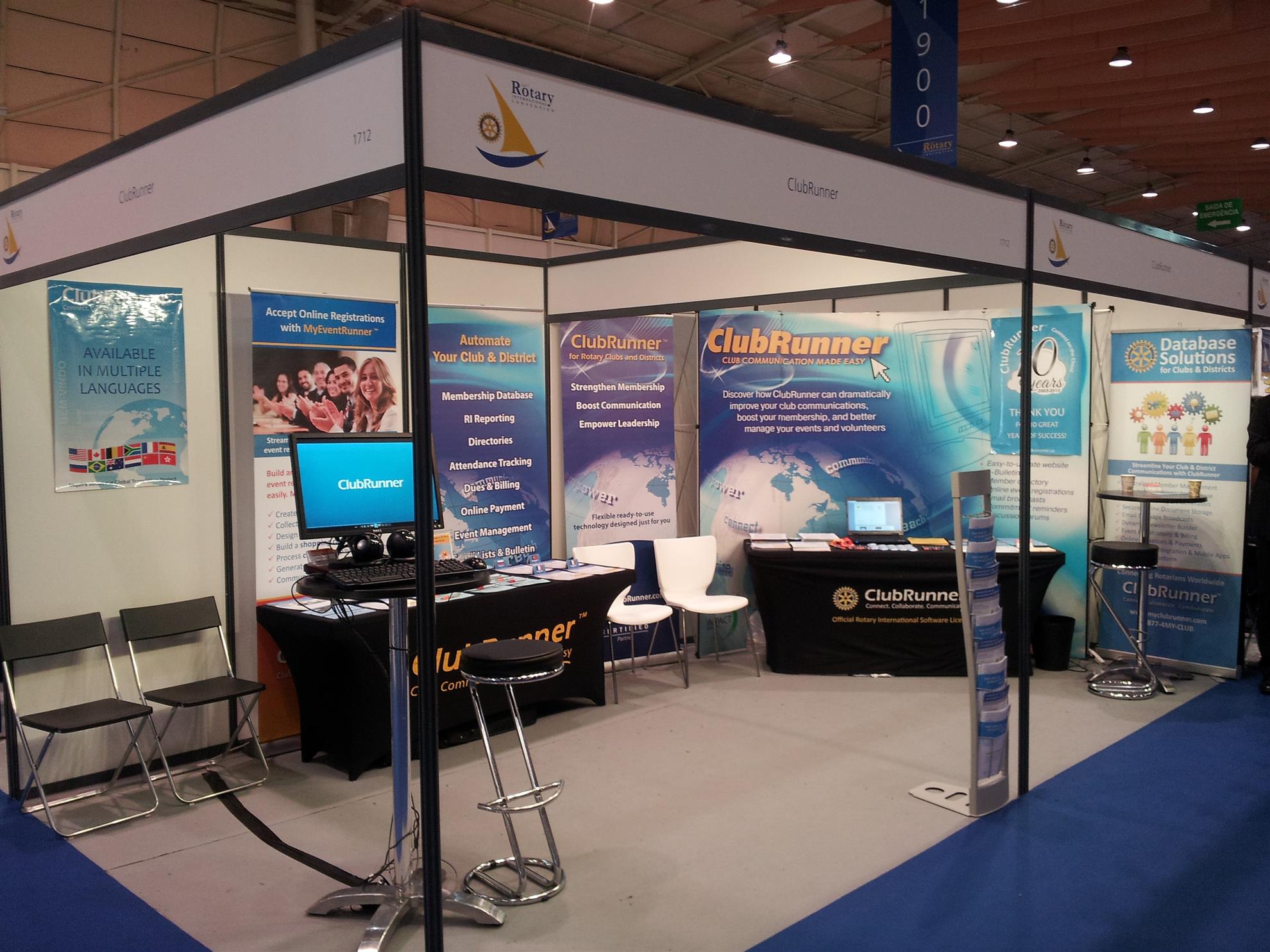
ClubRunner will be at the Rotary International Convention in Korea in May and are hoping to see you there.

We have some exciting plans for this 5 day event where we're going to be celebrating the launch of many of our new features to help boost your PR.

Won't you come visit us?


Located at Booth #2926 and 2928, come by and meet the faces of ClubRunner, share your experiences with us and members of the ClubRunner community and best of all celebrate the launch of our all-new Bulletin Designer!


Celebrate your Rotary story


Visit us our booth to see how we can help spread your message to your audience with our new PR features.

1. The all-new Bulletin Designer - Simplicity Reinvented

Be the first to get a sneak peek of our easiest designer yet. We're going to be celebrating the official launch of this feature with you at the convention.
  • See your newsletter come to life with the live email editor and never worry about jumping from the editor window to preview mode again
  • Select from one the many pre-designed customizable templates, add your message and you're set. Prefer creating your own design? Select from one of the many blank templates, add your own flare and send away.

2. Next-Gen Website Themes
  • Looking to give your website a face lift? Check out our new line of modern website themes.
  • Not only are they mobile responsive, these themes also include new wider page styles with menu navigation above the fold, rotating image carousels, and even homepage options without a banner.

3. Contacts
  • Integrated with your own bulletin and email, expand your network and engage with your community using the Contacts module.
  • Get organized by creating custom groups and segregate your lists by friends, prospective members, sponsors and more.

What else is happening at booth #2926 and 2928?

It's going to be an action-packed week. Come by and join Jeffrey, Mickey, Maxim and Divya for:
  •  website and bulletin enhancement workshops
  • tips and tricks for best practices
  • draws for some very exciting prizes 
  • and so much more
We can't wait to see you there!