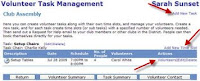
Did you know that you can now make a copy of a Volunteers sign up list for future events?
You asked for it, and we delivered! Within the Volunteers 3.0 module, you now have the ability to duplicate a Signup list rather than creating it from scratch again.
All the information within the list except the assigned volunteers are copied to your new list - which means, your defined groups, tasks, dates, time slots and settings are all carried over! You then have the ability to edit the Signup list details
from the edit screen to name your new list, define the start and end dates, link a Signup List Chair, etc. To duplicate, simply click on 'Copy' link under the Actions column on the Signup Lists page. Your new list will then appear on the main Signup Lists page.
There are still lots of updates coming your way! Please continue to send us your suggestions and feedback by emailing us at feedback@clubrunner.ca.
Welcome to ClubRunner's BlogSpot
Welcome to ClubRunner's BlogSpot - the place to stay on the pulse of hot off the press news updates about product developments, service announcements, local events and so much more!
Also, you can initiate discussions and share information among fellow ClubRunner users.
Your feedback is always welcome and necessary to help us make ClubRunner better. We want to know what you like, what you don't and what's on your wish list. Please let us know how we can enhance our service.
Also, you can initiate discussions and share information among fellow ClubRunner users.
Your feedback is always welcome and necessary to help us make ClubRunner better. We want to know what you like, what you don't and what's on your wish list. Please let us know how we can enhance our service.
Showing posts with label volunteer. Show all posts
Monday, May 11, 2015
Friday, April 23, 2010
Week 37: Tip of the Week
#37: Did you know that you can use the EventPlanner to get members to volunteer for your new committee structure?
Use the Volunteer Tasks sub-module within EventPlanner to create each committee as a Task, and each subcommittee as a subtask. You can also specifiy how many members are needed per committee. When you’re done putting together your structure, you can issue a Volunteer request to all your members so that they can see the club’s committee structure and who else has joined each committee. Then, they can volunteer online and sign up to join a committee.
For more detailed instructions on using the Volunteers sub-module, please click here.
Use the Volunteer Tasks sub-module within EventPlanner to create each committee as a Task, and each subcommittee as a subtask. You can also specifiy how many members are needed per committee. When you’re done putting together your structure, you can issue a Volunteer request to all your members so that they can see the club’s committee structure and who else has joined each committee. Then, they can volunteer online and sign up to join a committee.
For more detailed instructions on using the Volunteers sub-module, please click here.
Friday, August 21, 2009
Week 9: Tip of the Week
#9. Did you know that you can use the Event Manager to create and monitor volunteer lists?
Once you create an event for posting on your club or district’s site, you can set up tasks and request for volunteers! Use this tool to keep track of all action items, solicit help for your event or promote teamwork and collaboration by getting members to sign up for committees. To add tasks, create volunteer lists and monitor its activity, simply follow the steps below:
1. Click on services for the desired event
2. Under Volunteer Services, click on “Tasks & Volunteers Management”
Once you create an event for posting on your club or district’s site, you can set up tasks and request for volunteers! Use this tool to keep track of all action items, solicit help for your event or promote teamwork and collaboration by getting members to sign up for committees. To add tasks, create volunteer lists and monitor its activity, simply follow the steps below:1. Click on services for the desired event

2. Under Volunteer Services, click on “Tasks & Volunteers Management”
3. Click on “Add New Task”
4. Enter the required information as requested in the popup box
5. Once the new task list listed, click on “Add New Time Slot” and enter the details requested
4. Enter the required information as requested in the popup box
5. Once the new task list listed, click on “Add New Time Slot” and enter the details requested
Subscribe to:
Posts (Atom)