Welcome to ClubRunner's BlogSpot


Welcome to ClubRunner's BlogSpot - the place to stay on the pulse of hot off the press news updates about product developments, service announcements, local events and so much more!

Also, you can initiate discussions and share information among fellow ClubRunner users.

Your feedback is always welcome and necessary to help us make ClubRunner better. We want to know what you like, what you don't and what's on your wish list. Please let us know how we can enhance our service.
Showing posts with label email. Show all posts

Wednesday, November 4, 2015

Avoiding spam filters

You and your organization rely on the smooth flow of communication between members to share important information. If your emails are being blocked or identified as spam, it creates a disconnect in your organization because important details may be missed. All email clients now have automatic spam filters that rate every incoming message according to set criteria to determine whether or not they might be spam.While it isn't possible to predict every factor an email client uses to identify spam, it is possible to adopt some basic practices to help avoid having your organization's messages get blocked or get relegated to the junk folder.

Know what spam sounds like
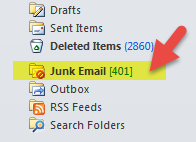
Spam filters check the entire content of your message and detect certain factors, phrases, and wording they regard as spam and then score your email. The filters analysis is largely based on what others have identified as spam in the past. If your message reads too much like previously identified spam mail, they will mark it as spam as well. So how does spam exactly sound? Think about all the phrases all those emails you move to your junk mail contain. Talking about large sums of money, including words like 'free' or using 'dollar signs' in your subject line, excessive use of exclamation points, all are indicators of what is considered a possible spam message. SpamAssassin, a mail filter used to identify spam shared a sample set of criteria that if found in your email results in a higher spam score:
  • Money back guarantee (2.051 points)
  • Contains urgent matter (.288 points)
  • Talks about lots of money (.193 points)
  • Describes some sort of breakthrough (.232 points)
  • Looks like a mortgage pitch (.297 points)
After accumulating all points, if your spam score exceeds a certain threshold, your email will go directly to the recipients junk folder.

Know what spam looks like

Your words aren’t the only thing that gets your messages marked as spam. The appearance of the email can also trigger the spam filters. Things like brightly colored fonts, image to text ratio, emails containing large attachments, all are factors that lead your email directly to the junk folder.

Let's consider the following legitimate email:

“Our Rotary Club is on the verge of an IMPORTANT BREAKTHROUGH!!!! Over the last decade we have RAISED almost $800,000 from the community to help pay-off the outstanding mortgage on the recreation center. We NEED TO RAISE ANOTHER $15,000 BY THE END OF THIS YEAR in order to set our fundraising record!! If we manage to do this, the state charity fund will MATCH our 2015 donations DOLLAR FOR DOLLAR and invest that sum back into much needed community improvements!!!!! Wouldn’t it be nice to get some of our TAX MONEY BACK? Our town needs this money and we NEED YOUR HELP! Together, we can make history! Help us today!!!!!!!!!!!!!!!!!.” 

Clearly, this message is an important one for the club and while the thought behind capitalizing, highlighting and using different font sizes certain phrases might be to draw attention to those points, the reality is, that by doing so, you increase the risk of low email delivery rates. The use bright of colors, especially red and green and using fonts that are too big or small are triggers that flag emails as spam.

Avoid sounding like an ad. Skip the sales pitch language whenever possible, reduce technical jargon and keep your message as simple as you can. The same concept also applies to your bulletin. Check out our Best Practices section for bulletins to learn more about how you can ensure you're sending filter friendly bulletins.

Spam filters also look behind the visible text and images, at the source code of your message. If your email is formatted with buggy HTML the spam filters might flag it as malicious code, which is why we never recommend copying content directly out of Microsoft Word to an email editor, but rather pasting your content from Word to a program like Notepad first, and then to your email editor. This is because when you paste content directly from a software like Word, you unknowingly also copy all the invisible formatting code used by that software. Not to worry! You can still prepare your content in Microsoft Word. Just follow the instructions we have on how to safely paste your content into the ClubRunner Editor window.

When you use ClubRunner to send your emails to members, your message is sent through our servers and we take great care to ensure that our sender reputation remain high with ISP's. We'll always do everything we can to combat factors that we can control to reduce spam scores but for more information on dealing with spam or blocked emails, visit our knowledgebase.

Thursday, June 3, 2010

New in MyEventRunner: Event Email Service

Now event chairs are able to email their attendees. Specify your target audience based on:
  • Attendee Groups (Paid, Unpaid or All Attendees)
  • Packages selected
  • Add-ons purchased
To make it easy and save you time, all custom distribution lists that are created in ClubRunner are automatically imported for you. Check out this new feature or contact a member of the ClubRunner team for more information.

Friday, March 5, 2010

Week 30: Tip of the Week

#30: Did you know that you can now leave your unique imprint on your email communications using custom signatures?
You can now create customized email signatures to include both text and graphics. Include your contact information and if you wish, a picture of yourself or your club’s logo. This is a great way for those receiving your email messages to remember your correspondence and keep in touch!
Publish Post

Thursday, February 11, 2010

New Feature: District AG Module

As part of the updated Organization Chart, there is now a new module specifically for Assistant Governors. Accessible by clicking on the "View AG Details" link under the Areas/Assistant Governors section, AGs can now view and edit their own clubs' executives, club information pages, create and manage their committees (with full committee module functionality), access club growth reports, and use a tailored email message service that can be used to email members, executives and directors of their own clubs only, as well as District officers. AGs automatically get access to this module by virtue of being assigned an AG of their area, and all District officers can access these modules by default.

Friday, February 5, 2010

Week 27: Tip of the Week

#27: Did you know that you can now determine if your email messages were received?

There’s no need to wonder ever again whether your email communications have reached their intended recipients or if they got lost in cyberspace. ClubRunner now will send out an email bounceback report to the sender of email messages. You will receive a report with a list of all members whose addresses resulted in a bounceback, along with their corresponding email address automatically a few hours after the email has been sent and any updated reports if applicable.

Wednesday, December 30, 2009

Week 23: Tip of the Week

#23: Did you know that you can hyperlink your files/documents within a story? Anytime you update content on your site, you have the option of creating links so your website visitors are able to quickly and easily access a particular file that you may reference. To enable hyperlinks within your stories, you must first upload the file to the “Download” section of the site. To do this:
  1. Login as usual and click on Admin.
  2. Click on “Edit Download Files” under the Website Manager section.
  3. Click “Add New File” on the top right.
  4. Fill out all the required information.
  5. Click on “Browse… “ and select the file for upload. (Note: you also have the selection to make this file not visible on the homepage, to do this click on the dropdown menu and click on “Do Not Show It In Homepage).”
  6. Click “Save”.

In order to link this file in your content, while still in the “Edit Downloaded Files” section (after the file is successfully uploaded) please follow these steps:

  1. Click “View” beside the appropriate file name.
  2. A new page will then open, copy the link that displays in the address bar.
  3. Edit or create a new story/bulletin/email where you would like to display a link to this document.
  4. Type in a word or phrase in which you want people to click to download the document such as “Please click here to download the registration form”
  5. Highlight the word/phrase to which you would like to link.
  6. In the editor, click on the Create Link icon, a window will then pop up, paste the link you copied earlier into the text box labelled URL and click OK.

Thursday, December 24, 2009

Week 22: Tip of the Week

#22: Did you know that you are able to upload multiple photos to your stories?

If you’re looking to insert multiple photos to your stories, the process is easy. You will need to first have the photos referenced on your site, either in the Download Files or in a Photo Journal. To select the photo, follow these steps once logged into your site:
  1. First locate the desired photo to be used. If it’s in the download files, from the Admin page, click on “edit download files”
  2. Click on “view” on the desired photo and right click on the image and select “copy”
  3. Go back to the admin page and click on “edit stories”
  4. You can then add a new story or open an existing one, right click in either the story brief or story content section and select “paste”.
  5. Repeat as necessary

For more information, please contact ClubRunner Support or visit our eSupport Center

Friday, November 20, 2009

Week 17: Tip of the Week

#17: Did you know you can do a quick search for members in your eDirectory?

Now you can search for any member in the District by their first or last name, email address or classification. To refine your search, enter all the information requested for the member that you’re looking for. Please be advised that the results will return as follows:

  • Member records that begin with the First name and Last name criteria are returned.
  • Records that partially contain the words under Classification are returned.
  • Searches by email must use a complete address.

Friday, October 16, 2009

New: Customized Email Signatures

You will be able to customize your email signature to include any information you would like on every outgoing message from the ClubRunner system. Currently, every email sent out is set to include the member name and club. With this update, any current or prospective member to whom emails are sent will be able to save your information and contact you whenever required!

Friday, September 18, 2009

New Feature: Active Member Update Request

Need members to update their profile? You can now send them a request to do so! The Active Member Request Update feature allows you to review how recently your members’ profiles were updated, and by whom. Send out an email to each member displaying their current profile details and request an update if required. In order to access this feature, you must have an access level of Club Executive (level 50) or greater.

Once the email has been sent to the member, it will appear within their inbox exactly as it would if they were logged into the ClubRunner system. If all information is correct, the member doesn’t need to do anything. To make any changes to the information, they simply click on the Update button located at the top and bottom of the email message, which takes members to a password page, followed by a direct link to their profile.

Visit the official ClubRunner website for more information about this feature.

Thursday, July 23, 2009

New Feature Release: Tabbed Member Profile

A new look and feel to your member information layout is now available! Complete with 5 tabs to organize and separate your data. With this feature update, you will be able to:
  • Choose a preferred address, email and preferred nickname to be displayed in the member directory
  • Monitor when changes were last made
  • View attendance reports
  • View member designations and committees
  • See list of club events and add them to your personal online calendar
  • Set and monitor a secured password to access your club’s site

To learn more about this new release, visit ClubRunner's official website

Friday, June 5, 2009

Week 1: Tip of the Week

Tip #1: Did you know that if your district is online with ClubRunner that you’ll have the potential to communicate with other clubs within your district?

If you are a current President, President-Elect, or Secretary, your Email Message Center will include distribution lists for all other executives in your District. Simply click on the list name to expand it and you will see the name of the club and the member. Note you won’t be able to see their email address, but by checking off their name they will receive your message. Use this feature the next time you need to announce your club event, request volunteers or even just for special announcements.

Each week there'll be a new tip posted to help you become more familiar with what ClubRunner can do. Stay tuned!