Welcome to ClubRunner's BlogSpot


Welcome to ClubRunner's BlogSpot - the place to stay on the pulse of hot off the press news updates about product developments, service announcements, local events and so much more!

Also, you can initiate discussions and share information among fellow ClubRunner users.

Your feedback is always welcome and necessary to help us make ClubRunner better. We want to know what you like, what you don't and what's on your wish list. Please let us know how we can enhance our service.

Friday, July 29, 2016

Tips on improving the appearance of your website

You'll agree when we say that everyone is talking about creating a more modern website. Something that is in line with Rotary branding, speaks to people of all ages, works on all devices and promotes your club in the best way possible. Did you know that our Next-Generation themes offer just that?

In the past, we've shared multiple tips on creating a great website, and with the trends always evolving, there's always something more to cover. Combined with our built-in widgets, you can create a sleek and professional website in no time. So, we start with the design!


Website Appearance: The Next-Generation Look

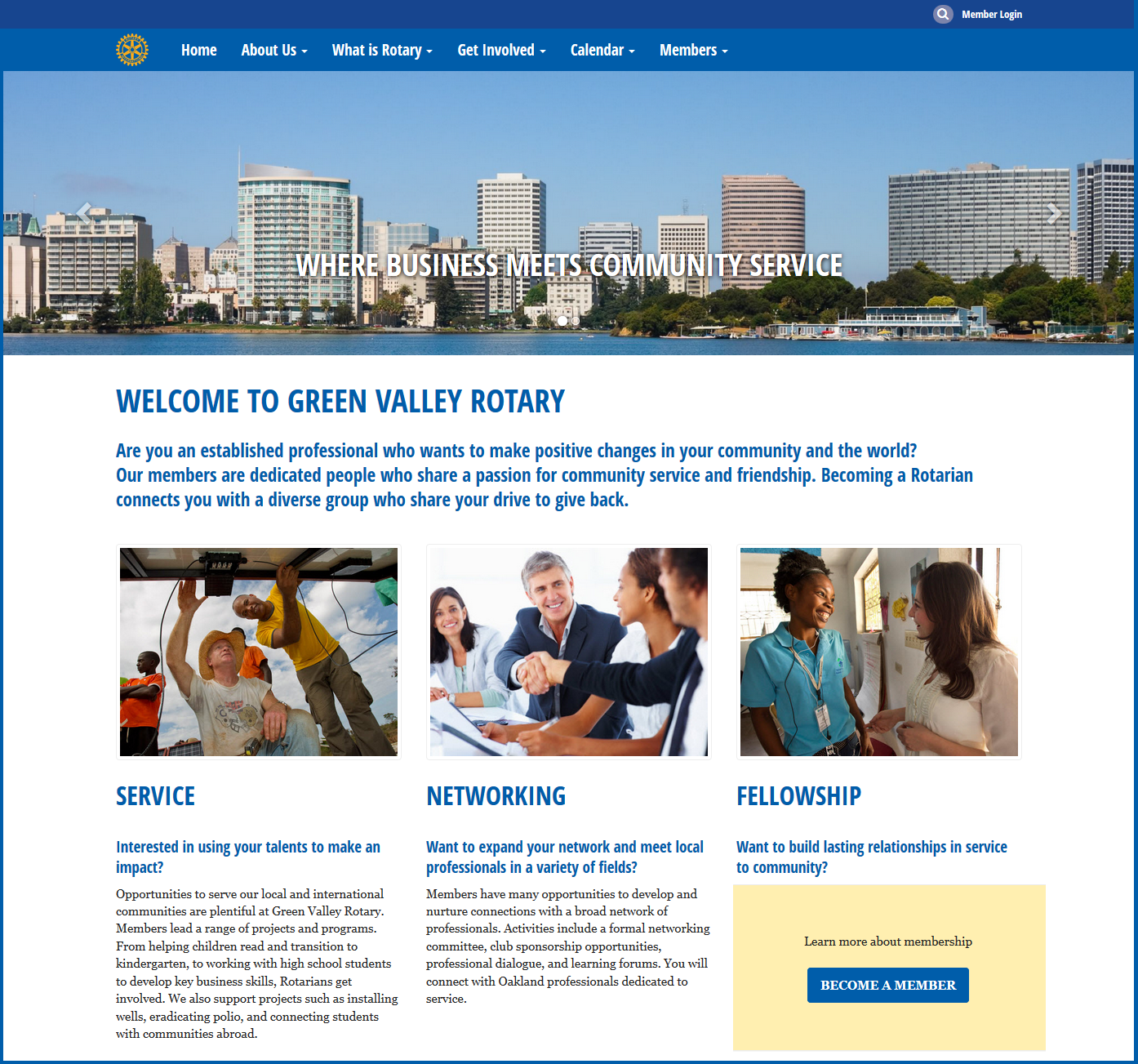
This is where the fun begins. We recommend checking out our Next-Gen themes, a line up of modern website templates with multiple page layout options. Then, simply select the color pattern and begin making it your own.

Not only are the next-gen themes mobile responsive, they also include new wider page styles with menu navigation above the fold, rotating image carousels, and even homepage options without a formal banner.

Check out a few examples!

http://portal.clubrunner.ca/794
Rotary Club of Chilliwack Fraser
http://portal.clubrunner.ca/6116
Rotary Club of Chicago Lakeview
  
http://www.rotaryoceania.zone/
Rotary Zone 7

Branding

As a Rotary club, it's important to show via your website that you are part of a greater organization such that you are able to promote what Rotary and your club stands for. Of course, at the same time, you also have to showcase your own clubs brand through your positioning statement and value proposition. Essentially, you portray your clubs identity through the branding.

Navbar:

Start by adding your club logo directly where the eyes of the visitor first go - the prime real estate
area, which is everything from the navigation menu till the fold (point at which they have to begin scrolling).

Within the Next-Gen website themes, you have the option to add a navbar brand icon directly on your navigation menu. A navbar brand icon can be any image that represents your club, whether that be a Rotary wheel or your own club logo. It gets added as a link to your menu, which directs visitors to the homepage if clicked.

What are the benefits? Besides the visual enhancement to your website, adding your club logo or an image associated with your club helps promote your brand to your visitors.

How can I add this? Check out the following article which goes over how to add the Navbar Icon.

Tip: Did you know that you can make your own club or district logo using the Logo Creator on Rotary.org's Brand center?

Carousel


What else can you use for branding? To promote your value proposition? Pictures! Consider adding the picture carousel to your homepage.

What are the benefits? A carousel allows you to upload numerous photos along with a caption to entice your visitors. As a Rotary club, you want to showcase your club members, its achievements, activities and reasons for joining. A carousel allows you to do so by giving you the opportunity to showcase more than one topic of item of interest, in the prime real estate area.

Showcasing your members and club activities directly on the homepage adds a personal touch to your site and immediately allows the visitor to relate to the club.

Tip: Always use high resolution photos on your site. If using the carousel, ensure that all images are the same size (height and width).

Use of buttons and colours

Buttons present a degree of interactivity between the visitor of the site and the site itself, encouraging
a call to action. This means the visitors are drawn to it to perform an action. You can add buttons to invite visitors to navigate to the next page, register for an event, donate, etc. The fact that buttons are more prominent than text links means visitors are inclined to see them more.


How do I add buttons in ClubRunner? Within our next-generation themes, links such as the 'Read More' that appear for stories, automatically display as buttons!

You can also add buttons easily via HTML within these themes. Check out this guide to adding buttons to your site.


Tip: Too many buttons on a homepage can be overwhelming and can confuse the reader as to where to click and why. Keep in mind that there is a balance to be maintained when using buttons to create a symmetry between effectiveness and aesthetics.

Pop of color

Once you've selected a color pattern for your website, you can add a splash of color in various areas - useful for when you want a certain widget to stand out. Did you know that you can alter the color and appearance of most widgets simply by editing the widget properties?

Tip: Though it can be tempting to add bright colors, remember to select colors that are inline with your your website colors and those that correlate with the branding of your club. Colors set the tone of what users think of your site - too dull, and visitors might not stay invested enough to stay on the site or read the content. Too bright, and the colors may stray visitors away from important content.

Resources

There are a variety of resources available to add more flair to your website. For royalty free images to add to your carousel, check out:
  • Rotary Brand Center
  • Pixabay
  • Unsplash
  • Getty Images
Always keep the licensing of photos in mind and cite the source you took them from. That being said, it is always best to showcase your own personal club images because they are what you want to display to the community, and it is your own pictures that allow prospective members to relate to your club.

We always say that website templates are like a canvas which you can build on. Whether it be by adding the all-new custom carousel, videos or by updating the CSS stylesheet - the point is to be able to represent your club with a website you can be proud of.

Check out our Next-Generation Website Themes Guide to learn more on adding a modern touch to your site!

Get the most out of ClubRunner this year

Happy New Rotary Year! This naturally is one of the busiest times for all clubs, which is why we thought we'd cross off one item from your list by exploring some of the most common questions we've found clubs have during this time of transition and answering all of them here.

1) How do I email all my members?

Contacting all your members at once is easily done through your ClubRunner site. To access the Email Message Center, click on the Email Services link from your Admin page. Click on compose new message to begin.

First identify the recipients of the email from your distribution lists (system generated and/or custom). To learn more about how to create custom distribution lists, click here. Simply click the check box next to the recipient category to select everyone in that group. 

If you only wish to email your active members, click on the plus icon to expand the category. Then, click the checkbox next to Active and leave the Honorary checkbox empty. You can even select specific members to email by clicking on the Expand List link next to each sub-category.

Then, simply type up your email as part of Step 2.  For more information on sending emails, refer to our KnowledgeBase or check out our video walkthrough.

2) How do I ask all our members to update their profiles?

It's important to have accurate member data as you enter the year ahead. ClubRunner has a specialized feature called Request Member Update that allows you to request each member to check and update their profile information. To access this feature, login to your ClubRunner site and click on the Membership tab. Then, click on the Request Member Update link.

On the page that appears you have the option to send the request to selected members, or to all your members. For step-by-step directions guiding you through this process, refer to this help article in our KnowledgeBase.


3) How do I update the President’s Message?

With the New Year comes new direction and new leadership.  Make use of the President’s Message widget to display a customized message from the President of your club. You can also modify the properties of this widget to include a photo and link to email the President and even display a preferred phone number, 
The use of this widget is a great way to both introduce a new president and talk about your club’s plans for the year ahead. For more information about the customization and use of this widget, check out this article.

4) How do I change the theme logo?

With the new year comes a new theme. This year, the presidential theme is Rotary Serving Humanity. The theme logo is already available through your site’s Rotary image folder. You can place these new graphics in places such as your site banner, club logo and on any page throughout your site.

Click here to learn how to update your club logo with the new graphics! To find out more about this year’s theme, and to access the new theme logo and supporting materials, visit the RotaryPresidential Theme page.


5) How do I send out the Bulletin?

Another excellent way to spread the message of the New Year and the new theme is through the use of your bulletin. The club newsletter is an excellent way to share information and keep all members up to date with the changes.

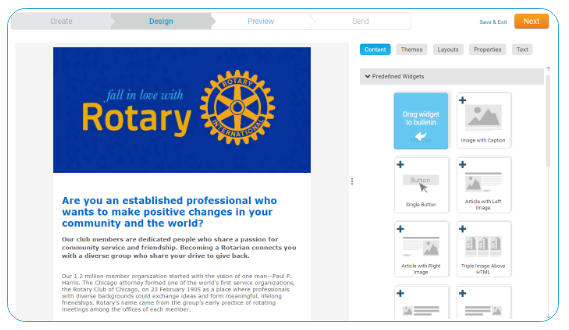
We recently launched the all-new Bulletin Wizard which allows you to create professional newsletters that make an impact on your readers.

  • See your newsletters come to life with the live email editor and never worry about jumping from the editor pane to preview mode, again.
  • Select from one of the many pre-designed customizable templates, add your message and send away.
Check out our interactive Bulletin manual to learn how to get started with creating your newsletters. 

6) How do I check if we are properly integrated with Rotary International? What is Compare and Sync?

Your club’s semi-annual invoice from Rotary International is calculated based on your membership numbers.  So, it’s very important that RI have an accurate count for your club. If you have Rotary Integration turned on at your site, your membership information is automatically passed to RI anytime there is a change.

To learn how to setup integration or check if you have this feature activated, click here.

The Compare and Sync feature lets you compare your membership records on ClubRunner vs. what exists on RI's database, allowing you to push the most current data to RI or pull from RI to ClubRunner. Check out our dedicated help article to learn more, or watch our tutorial video.

For more information about RI integration in ClubRunner, refer to our KnowledgeBase.

 
7) How do I assign meeting responsibilities?

With the Meeting Responsibilities feature, you can assign tasks for members to complete during meetings. It provides you with the ability to assign multiple tasks in an organized list. Once you've outlined all duties, you can even add the list to your website and bulletin. Members will also be able to see their commitments on their own profile. Refer to the Duty Roster Guide to learn more. 


8) What is the New Member Program?

It is important to make new members feel welcome in the club and familiarize them with the way your club works. A personal touch goes a long way compared to a booklet or email telling them what they need to know. The New Member Program allows you to assign orientation activities to existing members to welcome new members. This way, not only do new members get to meet and interact with each of your members on a personal level rather than in a group environment, but they also feel welcome and taken care of. Members can view their assigned duties in their commitments section. Learn more about setting this up in your club.


9)  How do I apply Leaves of Absence?

We often have members that need to go on a break without quitting Rotary. As such, they can be put on a leave of absence so they are exempt from all attendance rules. Applying a LOA is only a 3 step process:
          • Navigate to the Attendance module and select the member from the list
          • Click on "Add New Leave"
          • Specify your start and end dates
The following help article explains LOA's in detail.


10) How do I unblock members not receiving emails?

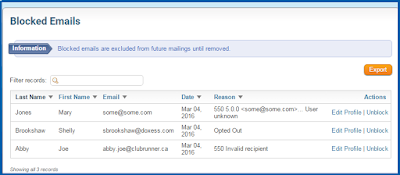
There are a number of reasons why members do not receive emails sent from ClubRunner. The most common reasons email addresses end up in a suppression list is because the receiver might have marked the email as spam or their inbox was full. The suppression list is essentially a block list which means anyone on this list will not receive future messages. 

To view and manage this list, click on the Communication tab on the Admin page, and then navigate to the Email Services Link. Then, simply click on Manage Blocked Emails. Here you will see a list of all addresses that are blocked along with the reason. Simply remove all email addresses that don't belong here. For more information, click here.


11) How do I apply the Rule of 85 for members?

As you're already aware, the RI Constitution defines excused membership as related to the Rule of 85 as, the aggregate of the member's years of age and years of membership totaling 85 or more. In ClubRunner, the Rule of 85 is tracked as an exemption.

To see which members qualify for the Rule of 85, you can generate the Rule of 85 report. It tallies relevant information based on what is available on the member's profile. For more information, check out this help article. Now that you have a list of members, simply exempt them from further attendance regulations.


12) How do we change who the Contact Us form on our site goes to? 

We offer two versions of the Contact Us form, one which is already embedded into a built-in page
that forwards inquiries to the specified club contact, and one which is available in the form of a widget.

To learn more about linking a Contact Us form to your menu bar and specifying your club contact, click here.

Some clubs prefer customizing a Contact Us page to include their meeting address, mailing address and even email. As such, they often create custom pages and them use the Contact Us widget to embed a form into the page. To learn more about this option, refer to the following tips and tricks article.


13) How do we define our current club executives? Committees?


You may very well be filling in club positions this month, or even creating new ones based on your goals. Perhaps you noticed a position has been incorrectly assigned or an executive resigned. Learn how to add the Executives listing to your website and define your club executives here.

Committees are an excellent way to organize the activities of your club. Now that your club is forming new committees to align the team with your goals, learn more about how you can add new committees, and assign members to their new roles. 


Have more questions that we didn't cover here? Check out our Knowledgebase for answers to many other questions or contact our support team with your questions, suggestions and feedback! We're happy to help.

Saturday, July 23, 2016

Meeting Responsibilities

Did you know that you have the ability to create and manage multiple tasks in an organized list for members to complete during meetings?

The Meeting Responsibilities feature lets you create groups and positions, and easily assign members to each task. Once you've outlined and assigned all tasks, you can even add them to your website and bulletin. 

How do I add duties to the meeting responsibilities list? 

1) Click on the organization tab on your Admin page and then on the Meeting Responsibilities link.
2) Once here, simply click on the "Add new position" button and fill in the details.

Here, you'll be able to associate your positions with groups, assign duties to members and more.

To learn more about this new feature, refer to our help guide.

Friday, July 15, 2016

Updating the theme logo and menu home icon

We're now two weeks into the new Rotary year and have been receiving a lot of emails on how to update the website. The two most popular questions have been how to update the theme logo and update the menu home icon.

To update your theme logo:

1) Click on the Website Designer and then on the Settings tab
2) Click on the Upload Club Logo link in the Graphics section
3) Upload/Select your image 

That's it! As a reminder, the club logo displays on various sections of your website such as the Meeting Information widget.

To update your home menu icon:
 
1) Click on the Website Designer and then on the Settings tab
2) Click on the Upload Menu Home Icon link in the Graphics section
3) Upload/Select your image 

What is a home menu icon? If you are using a Next-Gen theme, then you have the option to add a a brand icon directly on your navigation menu. A brand icon can be any image that represents your club, whether that be a Rotary wheel or your own club logo. It gets added as a link to your menu, which directs visitors to the homepage if clicked (hence the name, home menu icon).

Preparing for the new year? Join us for our training webinars where we go over each feature found in ClubRunner.


Friday, July 8, 2016

What's new in ClubRunner this Rotary year?

Happy New Rotary year!

As you begin another exciting year, we wanted to offer you our support with any questions you may have regarding ClubRunner. We've made some exciting updates to begin the month of July just right, and wanted to share a little more on what's new.

This new Rotary year, there is a whole lot of new!

Over the past little while, we've made a lot of exciting updates to help you promote your Rotary brand with our latest Public Relations enhancing features.

 1. Next-Generation Website Themes
Looking to give your website a face lift? Check our our new line of modern website themes. Not only are they mobile responsive, these themes also include new wider page styles with menu navigation above the fold, rotating image carousels, and even homepage options without a formal banner. Learn more.

 2. All-new Bulletin Wizard
See your newsletter come to life with our live email editor and never worry about jumping from the editor window to preview mode again. Select from one of the many pre-designed templates, add your message and you're set.
Prefer creating your own design? Select from one of the many blank templates, add your own flare and send away. Learn more.

The new Contacts module lets you get organized by creating custom groups and segregate your list by friends, prospective members, sponsors and more. Already integrated with the bulletin and email center, you can easily communicate with your network and engage your community. It doesn't end there! Check out a list of all of our latest features and enhancements, and what's coming soon by clicking here.

Stay in the know.
Interested in fun tips and tricks to boost your ClubRunner experience? Stay on top of the latest updates and new feature releases by following our service updates, which occur biweekly on Thursday mornings.

Support at your fingertips.
If at any time, you need more information on how to use a certain feature or have general questions about ClubRunner, we invite you to visit our Support Center at www.ClubRunnerSupport.com. Here you will find links to our:
We understand that you've taken on a big responsibility in a demanding yet rewarding position and want to do everything we can to ensure your success this year. Have a suggestion? Email us at feedback@clubrunner.ca!

Friday, June 24, 2016

Linking to the new search

A few weeks ago, we announced the new website search feature which we'd added to all websites, right next to the member login link. Wish you could link to the search page from other areas of the site? Now you can!

Link to the search page

You can now link to the new built-in website search page from anywhere on your site. We've included it as an option to link via the navigation menu, links widget as well as any story or custom page.

How do I link to it?
It's been added under the Built-in pages option.
  1. Select the text you want to hyperlink and click on link on the toolbar
  2. Select built-in pages from the drop down menu and then on Search
If adding the search to your navigation menu, give the menu item a title and then select the page from the built in pages option.

Have a suggestion on a feature? Email us your feedback!

Thursday, June 9, 2016

Introducing the all-new Bulletin Wizard

It's here! You asked for a more intuitive, fun and easy way to create your bulletins and that is just what we delivered. Introducing the all-new Bulletin Wizard - simplicity reinvented. 


http://clubrunner.helpserve.com/Knowledgebase/Article/View/1342/220/video-new-bulletin-wizard---teaser

Over the past year, we've been collecting feedback on what you wanted to see in the Bulletin Designer. Through online webinars, President Elect Training Seminars, conventions and conversations via email and phone, your suggestions filled our wishlist with functionality that would make up an ideal bulletin module.

Welcome to the Bulletin Wizard! 

Currently in beta, this new designer will let you create professional, modern and mobile-friendly bulletins that stand out.
  • See your newsletter come to life with the live email editor and never worry about jumping from the editor window to preview mode, again.
  • Select from one of the many pre-designed customizable templates, add your message and you're set, which means you don't ever need to start from scratch.
  • Prefer creating your own design? We've created blank templates with a number of supporting page layouts so you can add your content, tweak the colors and send away.
Whether you're looking to match the Rotary Brand guidelines or your own unique style, engage your readers with newsletters that capture attention and make an impact. Thoroughly tested on all email clients, browsers and devices, we guarantee that all our designs will look great on all platforms.

How do I access it? 

Now installed on your club and district website, you will see a new tab titled "New Bulletin (Beta) appear on top of your Admin page, next to the current Bulletin tab. You still have access to the current designer and can use both modules. Eventually, the current designer will be replaced by the new Bulletin Wizard.

Help resources 

To help get you started, we've created an interactive Bulletin Manual introducing you to the new designer, which you can access by visiting: http://docs.clubrunnersupport.com/bulletin.

Join us for our introductory webinar

Join us as we introduce you to the new Bulletin Wizard. We'll go over everything that is new and how to get started.


If you cannot make it on that date, not to worry! This webinar will be recorded and made available online soon after. 

As you create your own bulletin designs, please share them with us. We look forward to your feedback.

Rotary Convention Day 4 & 5 Recap

We were almost nearing the end of the convention and yet we still had so much to cover! Day 4 began with Maxim, Manage of Software Development joining Peter Markos, CIO of Rotary International at a plenary session covering database integration between Rotary and its Official Licensees. Over the past few months, we've been working with Rotary's data division to upgrade the sync feature as part of our new Licensee agreement. As such, with this new upgrade, we'll be able to:
  • sync new member additions immediately
  • support change in member types between active and honorary
  • sync additional club info fields such as email, phone, fax
  • support additional membership fields such as birthday and spouse
Of course, we'll continue to add more fields as and when they become available from RI. During the plenary session, we were able to answer a lot of questions that the audience had about ClubRunner and the advantages of activating the data sync feature. If your club or district has not yet activated this feature, learn how you can do so.

As the day progressed, we had many of our customers visit us to check out what's new. From downloading our mobile app to getting a sneak peek at the Bulletin Wizard, our booth was buzzing with activity.


Day 5 brought with it a bag of mixed feelings. On one end, we were excited and happy to meet all of our customers and new friends while on the other end of the spectrum, sad that the week long event was coming to a close.

Right from the first bell signifying that the House of Friendship was open till the very last announcement closing the hall down, every demo station we had setup was full as our team held interactive sessions on how to combat the common challenges that clubs face, such as attracting younger members, reaching a wider audience, engaging with your audience, and more. We welcomed tips from all clubs and it was great to see everyone sharing their own best practices. Over the next few weeks, we'll be sharing these best practices to help get you ready for the new Rotary year.

During the week long event, we also had many people enter our raffle for their chance to win a free one year subscription to ClubRunner. We'll be announcing the winners soon, stay tuned!

Thank you to everyone that visited the ClubRunner booth and made this event memorable. If you have any pictures you want to share with us, join the conversation and get connected with us on Facebook.

Monday, May 30, 2016

Rotary Convention Day 3 Recap

Another great day, today we held multiple demo and training sessions going over all the tools that can help you improve your Public Relations.


The day began with a series of sessions on the Website Designer, where we showcased our Next-Generation website themes and went over all the best practices to remember when editing your website, such as:
  • Visualization: capture the attention of your visitors with imagery because as the saying goes, actions speak louder than words. Showcasing your club from a visual standpoint promotes your club much more effectively because you're able to give your visitors a better sense of what your club is about immediately. Use the built-in photo carousel as a banner to immediately create that visual effect.
  • Content is king: The fact is simple. An updated website will draw many more visitors than one that displays outdated information. Add content quickly using the custom widgets and stories.
  • Ease of navigation: Your website is the first place visitors come to learn more about your club, so if they can't navigate from one page to another easily to access the information they need, that impacts your bottom line. Categorize and sort your pages and link them directly to your navigation menu.
As the day progressed, we hosted a series of sessions related to Public Relations where we then went over integrating your social media channels with your ClubRunner site, building multiple bulletins for your segmented recipient groups and connecting with your club on the go through our mobile app.

We also got some great feedback on what you would like to see in ClubRunner. Thank you for taking the time to sit with us and give us your detailed suggestions.

If you haven't already, be sure to like our page on Facebook to view all the vlogs we're posting from the convention as well as photos throughout the day.

On to Day 4, stay tuned for more!

Sunday, May 29, 2016

Rotary Convention Day 1 & 2 Recap

We've been looking forward to this convention all year and finally made it to Seoul, Korea, with some very exciting features to showcase. With more than 43,000 Rotarians attending, the RI convention hashtag for this year, #Rotary16, became a trending topic on both Facebook and Twitter hours before the official opening ceremony. Needless to say, there is a lot of exciting information to share.


Days 1 and 2


We started Day 1 by revealing our brand-new, soon to be released Bulletin Wizard module, and the reactions have been spectacular. If you haven't already caught a sneak preview, click here to view what's coming.

Over the past two days, a recurring challenge we've heard clubs are facing is engaging with their members and non-members and attracting younger members; both of which can be overcome with ClubRunner! In fact, the new Bulletin Wizard and the Contacts module work together to let your club create your message using a branded email template and send it to the right audience at the right time.

At our Next-Generation Website theme Upgrade Station, we've been helping clubs switch their website themes to the newest templates and have hosted some great sessions at our booth going over the importance of a modern looking up-to-date website and what to do to attract the younger generation.

Our team also set up multiple stations at our booth to present all of our latest features, including the Contacts module, Attendance 3.0 and even Volunteers, and have also been going over some of the updates coming soon, such as the RI Database Integration Update, which will offer more options for integration.

If you haven't already, be sure to like our page on Facebook to view all the vlogs we're posting from the convention as well as photos throughout the day.

On to Day 3, stay tuned for more!