Welcome to ClubRunner's BlogSpot


Welcome to ClubRunner's BlogSpot - the place to stay on the pulse of hot off the press news updates about product developments, service announcements, local events and so much more!

Also, you can initiate discussions and share information among fellow ClubRunner users.

Your feedback is always welcome and necessary to help us make ClubRunner better. We want to know what you like, what you don't and what's on your wish list. Please let us know how we can enhance our service.

Wednesday, April 27, 2016

Visit the ClubRunner Booth in Korea

ClubRunner will be at the Rotary International Convention in Korea in May and are hoping to see you there.

We have some exciting plans for this 5 day event where we're going to be celebrating the launch of many of our new features to help boost your PR.

Won't you come visit us?


Located at Booth #2926 and 2928, come by and meet the faces of ClubRunner, share your experiences with us and members of the ClubRunner community and best of all celebrate the launch of our all-new Bulletin Designer!
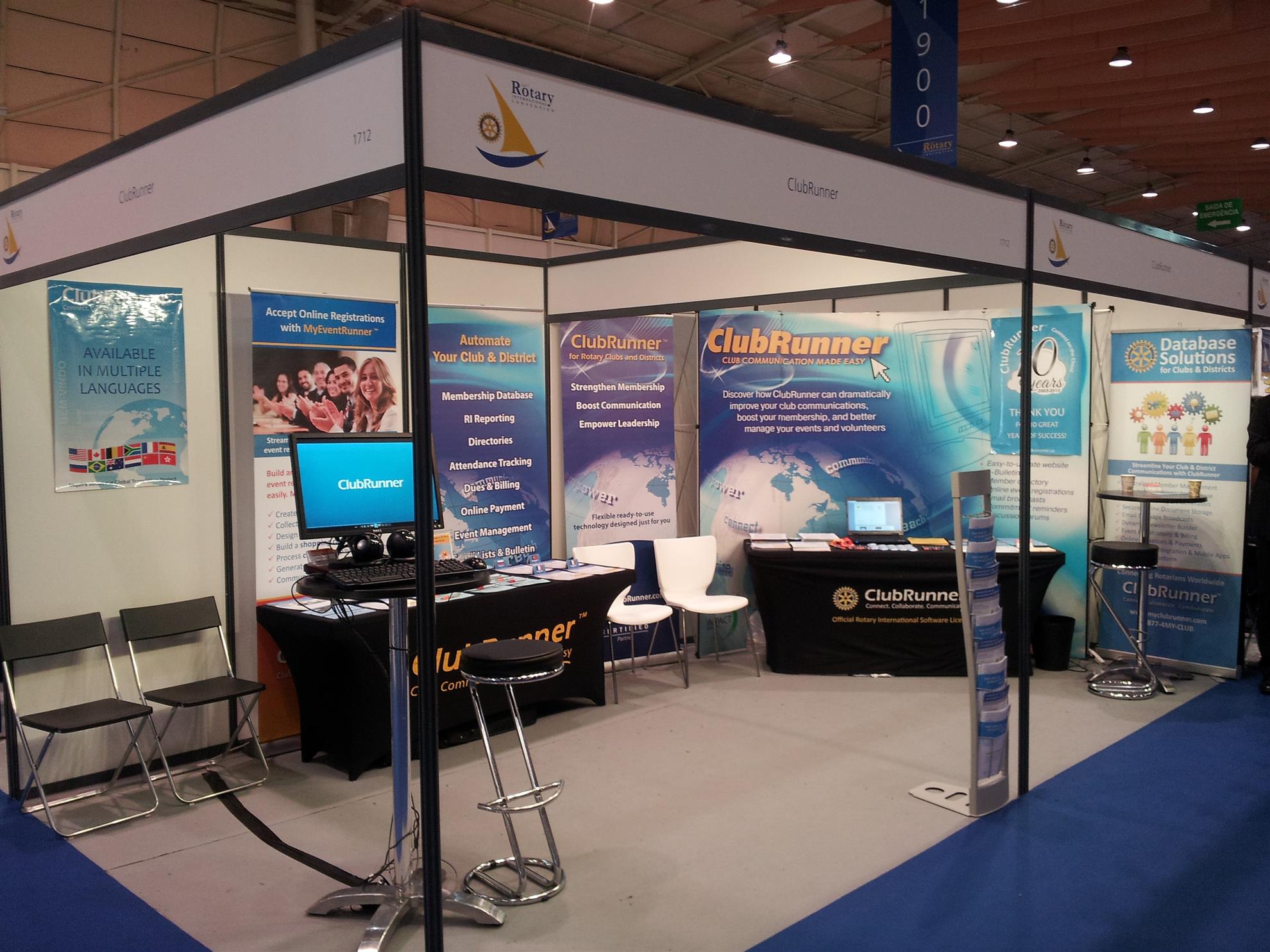

Celebrate your Rotary story


Visit us our booth to see how we can help spread your message to your audience with our new PR features.

1. The all-new Bulletin Designer - Simplicity Reinvented

Be the first to get a sneak peek of our easiest designer yet. We're going to be celebrating the official launch of this feature with you at the convention.
  • See your newsletter come to life with the live email editor and never worry about jumping from the editor window to preview mode again
  • Select from one the many pre-designed customizable templates, add your message and you're set. Prefer creating your own design? Select from one of the many blank templates, add your own flare and send away.

2. Next-Gen Website Themes
  • Looking to give your website a face lift? Check out our new line of modern website themes.
  • Not only are they mobile responsive, these themes also include new wider page styles with menu navigation above the fold, rotating image carousels, and even homepage options without a banner.

3. Contacts
  • Integrated with your own bulletin and email, expand your network and engage with your community using the Contacts module.
  • Get organized by creating custom groups and segregate your lists by friends, prospective members, sponsors and more.

What else is happening at booth #2926 and 2928?

It's going to be an action-packed week. Come by and join Jeffrey, Mickey, Maxim and Divya for:
  •  website and bulletin enhancement workshops
  • tips and tricks for best practices
  • draws for some very exciting prizes 
  • and so much more
We can't wait to see you there!

Monday, April 25, 2016

Tip of the Week: Photo Carousel

Did you know that you can add a rotating picture carousel on your website?


You've asked for it in the past, and many have even used third party services to add a rotating carousel on your website, but did you know that you can add this to your website from within the Website Designer itself? Not only that, you can add multiple carousels to your website.


The Carousel widget is available under the Essentials tab in the designer and can be placed anywhere you'd like on your website. Best of all, you don't need to know any HTML to add it.

How does it work? The carousel widget takes pictures from your photo albums, which is why we recommend you first create a separate photo album specifically for the carousel. The description of the photo which displays as a caption is taken from the text you add to the 'photo title' within the album. As a helpful tip, for consistency, we recommend you use pictures of the same size (width and height) in the photo album.

How do you add it?

1) Once you place the widget on your website editor window, you will be directed to the Carousel setup screen.
2) Fill out the fields and select which photo album you would like to display in the carousel, and then click save.

That's all there is to it! For additional tips, check out this help article on our knowledgebase. 

Monday, April 18, 2016

Tip of the week: Sponsorship module

Many of you are already aware that you have access to a Sponsorship module in ClubRunner. Essentially, this module allows you to let businesses advertise on your website, and all revenue collected is the clubs to keep.

Clubs have the ability to display these ads on the homepage, bulletin and on all secondary pages of the website. Did you know that you can control which secondary pages you want these ads to display on?

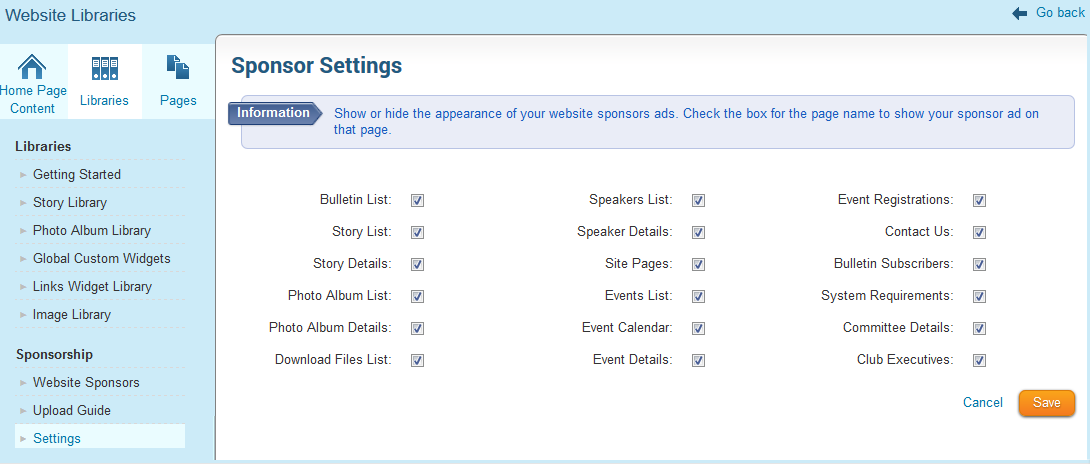
How can I change these settings? To view which pages you can have sponsor ads on:

1) Navigate to the Manage Sponsor Ads page and then to the Sponsor Settings
2) Check which pages you want the ads to show on and click save

How are other clubs using this feature? We found that most clubs charge different rates based on how many pages the advertiser chooses to include the ad on, which in turn helps the club fundraise more for their projects. We asked a few clubs to share examples of their advertising structures and found that the majority charge somewhere between $50 - $100 for the ads on the homepage followed by anywhere between $2 - $25 for all subsequent pages per year.

Others choose to display sponsor ads on all pages to give advertisers maximum exposure for one flat rate, while some choose to limit the ads to the home page only. How does your club use the sponsorship module?

Friday, April 8, 2016

Tip of the week: Nav Bar Icon!

Looking to add more flare to your navigation menu? You've asked for this is in the past, and we're more than happy to deliver. Did you know that you can add an icon on your navigation menu to link back to your home page?

If you've switched to one of our Next-Gen website themes, then you now have the option to add a navbar brand icon directly on your navigation menu. A navbar brand icon can be any image that represents your club, whether that be a Rotary wheel or your own club logo. It gets added as a link to your menu, which directs visitors to the homepage if clicked.

What are the benefits? Branding of course! Besides the visual enhancement to your website, adding your club logo or an image associated with your club helps promote your brand to your visitors.

How can I add this? You do have to be using one of our Next-Gen themes in order to customize your menu with an image. In your theme library, you will see that all of the titles of our latest themes will include the words 'Next-Gen'.

To add the nav-bar icon:

1) Go to the Website Settings page and click on Upload Menu Home Icon
2) Select your image from the Image Library to upload

It's that simple!

Friday, April 1, 2016

Tip of the week!


There are some weeks where you need to send out a reminder of member commitments for the week, while other weeks, you just don't want that information displaying on your bulletin. You asked for it, and we made it happen!

Show member commitments on a per bulletin basis


Based on your feedback, we've incorporated the "Show Commitments" option as a feature that can be turned on or off on a per bulletin basis.

What does that mean? Now, when you create or copy a bulletin, you will see an option to activate the 'Show Commitments' feature on the Properties page. If checked, each bulletin will display the member commitments whether that be:
  • tasks assigned in the duty roster
  • upcoming events they have registered for
  • volunteer shifts they've signed up for
  • tasks assigned within the new member program
  • and more
  If not, then the entire section is removed. Have a suggestion on a feature? Email us your feedback!

Friday, March 18, 2016

Tip of the week!

Did you know that you can now recover images that have been deleted from the image library?


We've added a soft delete/image restore function to allow you to recover images that may have been accidentally deleted from the Image library.

Where do the images go?
Deleted images automatically get moved to a new area called "Deleted Images Archive" accessible from the Image Library itself.
  • Click on the website tab on the Admin page
  • Next, click on Image Library link that appears below
How exactly do I recover them?
When on the Image Library, you will see a new tab on the top right called "Deleted Images Archive" from where you can recover the images. Simply right click on the image and click on "Recover". 

It's that simple!

Friday, March 11, 2016

Has your club already created a satellite club? Or is starting one soon?

The latest shift in Rotary to accommodate the change in member’s family structures, professional environments and personal commitments by providing flexible meeting options led to the creation of the satellite program.

We’ve had so many clubs sponsoring satellite clubs over the past few months, and want to learn more about your requirements, so that we can provide you with the features you need. Whether you want to see a new membership type called “Satellite Member” or more reports, now is your chance to have your say!

Tell us how your club manages satellite members and what you would like to see!

Friday, March 4, 2016

Manage Blocked Emails

You've probably experienced this in the past: you send an email only to find that a handful of members never received that email. As time goes on, you see it's the same people that aren't receiving any emails you send. A problem to say the least, but we have good news! 

We've now added functionality to give you more control over your entire suppression list. Whereas you have been able to remove emails from the suppression list on a campaign/email basis, you can now view your entire suppression list related to all the emails you've sent in the past.

A suppression list essentially is a block list which means anyone on the list will not receive future messages. The most common reasons email addresses end up here are when the receiver marks your email as spam or if their inbox is full.  To view and manage this list, click on the Communication tab on on your Admin page, and then navigate to the Email Services link. Upon doing so, you will see a new link appear called "Manage Blocked Emails" on the menu.

Here, you will see all the email addresses that no longer receive emails from you along with the reason why. Click on "Unblock" to remove them this list, or on "Edit Profile" to update their email address.

It's that simple! So the next time you find that a member did not receive an email, it's easy to find out why and take action.

What can members do to ensure they always receive emails? Sometimes, Internet Service Providers automatically block emails coming from a certain address, if they've received spam complaints before, by no fault of your members. As such, we always recommend putting mailservice@clubrunner.ca to your list of allowed senders.

Friday, February 26, 2016

Next-Gen Themes: The Feedback!

Just under two months ago, we released our brand new Next-Gen website themes (with many more on the way!), and the feedback we've received so far has been nothing short of overwhelming. For that, we must thank you!

Around 200 clubs have already switched to the new themes. A lot of clubs have garnered inspiration and made the design their own, which is our favorite thing to see. We always say that website templates are like a canvas which you can build on. Whether it be by adding the all-new custom carousel, videos or by updating the CSS stylesheet - the point is to be able to represent your club with a website you can be proud of.

Check out a few websites using the Next-Gen themes!


Rotary Club of Barrie
Rotary Club of Chilliwack Fraser
Rotary Club of Sedona
Rotary Club of Chicago Lakeview
Rotary Club of Toronto Beach 
Rotary Club of Palo Alto


Stay tuned for more website templates coming soon! If you haven't yet checked these themes out, head on over to the Theme Library to see what you're missing! Download our help guide to get started.

Friday, February 12, 2016

New "Other User" types for previous honorary members

Did you know about the two new "Other User" types for previous honorary members?

We've added two new "Other User" types for Honorary Members that have left the club, specifically:

  • Past Honorary (Ex-Member)
  • Past Honorary (Deceased)

Currently, when you change the status, the honorary member gets moved to the Other Users list, and from there, if need be, can be deleted. Kindly note, that we are working on implementing a new API from Rotary which will allow us to pass honorary termination information over to the RI database automatically. Currently, this must be done manually.

Upon its release, all honorary members that have left the club will move to the Inactive Members list, and, the system will continue to maintain their history while noting their previous honorary status with the club. Additionally, this information will automatically be sent to RI (if the RI Integration feature is enabled).

Our tentative release date for the new implemented API is early March 2016. Further details on the new API and any impacts will be available closer to the release date.