Welcome to ClubRunner's BlogSpot


Welcome to ClubRunner's BlogSpot - the place to stay on the pulse of hot off the press news updates about product developments, service announcements, local events and so much more!

Also, you can initiate discussions and share information among fellow ClubRunner users.

Your feedback is always welcome and necessary to help us make ClubRunner better. We want to know what you like, what you don't and what's on your wish list. Please let us know how we can enhance our service.

Friday, January 22, 2016

Tips for the week!

Did you know that you can easily change the membership type of an honorary member to a variety of options including staff, corporate, exchange student, etc.?

You asked for it and we listened! We've now made it easier to move honorary members to your Other Users list. When looking through your Active Members list, you will see a new action type called "Change Type" next to all honorary members. This allows you to move honorary members to your Other Users list where you can mark them as a staff member, an exchange student, corporate member or as any one of the options presented to you on that list.

Need to promote an upcoming event? Did you know that ClubRunner automatically generates a friendly name for your events?

Whereas previously, when sharing an event, the URL that was generated displayed the Event ID, we've modified this to always display a friendlier address. This means that your event URL will always display as www.mysiteaddress.com/event/NameOfEvent, making it much easier to publish it on flyers, etc.

Did you know that you can now directly link to a specific speaker entry rather than the entire speakers list?

Whereas previously, you could only link to the Speakers list page as an option with the "Built-in" pages to link to, you can now link to a specific speaker entry! Simply use the link button on the editor and then click on the "Speaker" option. You'll then be able to choose which speaker entry you to want to link to.

We add features to the system every two weeks as part of our software upgrade release. Missed our notes from the last service update? Check them out here!

Friday, January 15, 2016

Tip of the Week: Manage blocked and bounced emails

Picture this scenario: you send an email and at your next meeting, you find that a handful of members never received your email. Our support team does some investigation and find that the message simply bounced or was blocked, perhaps due the fact that the recipient might have marked a previous email as spam. Sounds familiar?

Managing bounced and blocked emails


We've now added functionality to give you more control over your suppression lists. When members stop receiving emails, it is because for some reason, they were automatically placed in a suppression list. There are many reasons why this might occur, however, the most common are when someone marks your email as junk mail or if their mailbox was full.

A suppression list essentially is a block list which means anyone on the list will not receive future messages. You can now remove these email addresses from this list! To do so, simply navigate to the Email Traffic Report page and then click on the Details link under the Actions column. Next, click on the number under the Emails Sent column to view your email statistics. On the top right of this page, you will find the "Manage Bounced and Block Emails" button. You will then see a list of email addresses that did not receive your message along with the reason why, and will be able to remove them from this list.

It's that simple! So the next time you find that a member did not receive an email, it's easy to find out why and take action.

Friday, January 8, 2016

Introducing Newer, Fresher, Modern Website Themes


Give your website a new look with ClubRunner's new responsive themes.


Times have changed, and so must we! You asked for fresher, newer and more modern website themes, and that is just what we are going to deliver. This January, take your website to the next level with our modern line of website templates.

Designed from the ground up on a new framework that is fully responsive and scales beautifully on all screen sizes (yes, we mean true mobile compatibility!), these new themes include new wider page styles with menu navigation items above the fold, image carousel, and even homepage options without banners.

Best of all, you can choose your theme and edit your content using the same familiar interface you are used to, the ClubRunner theme library and Website Designer. Simply select the theme, layout option and color variant and let your website shine!

Get a sneak peek


Get a sneak peek of a few select themes by heading over to your themes library! We've added two new Next-Gen themes called Millennium and Mid-Century, complete with a number of color variations and different page layouts for you to choose from! Check out our Next-Gen Themes Help Guide to get started.

Thursday, December 31, 2015

2015 - Year in Review

2015 has been a whirlwind year for us at ClubRunner with lots of changes and growth. It is only with your support and encouragement that we are where we are today and why we were able to hit so many milestones.

Connecting with Clubs

We love when we get the chance to connect with our customers and share in their success stories. 2015 began with our first stop at the 2015 Rotary International Assembly in San Diego, where we met with our District champions and had the opportunity to meet some great new leaders and establish new relationships. We're proud to say that as of December 2015, we serve 122 Districts and more than 5,000 clubs worldwide. From mid-February until March end, we continued our journey by attending 17 President-Elect Training seminars. Seeing champions reunite at our booths and sharing best practices, we brought home some great memories. At home, we had the opportunity to welcome several visiting Rotarians to our own office for training, best practice and even focus group sessions.
 
We look forward to meeting everyone once again next year with even more features to unveil!


More Solutions, New Versions

In July, we released new levels of ClubRunner to meet the unique needs of each individual club with the release of ClubRunner Lite to clubs of all sizes and ClubRunner Admin Only in addition to the Standard Version.
 
ClubRunner Lite is a great option for clubs that need just the necessities for public relations like a website or newsletter, while the Admin Version is for clubs that still want to take advantage of all the administration and member management features but maintain their website outside of ClubRunner. 
 
Now, no matter what your needs or budget, we have a solution just for you!


Customer Wish List

Every year, we receive hundreds upon hundreds of suggestions from customers about features they would like to see in ClubRunner. Our goal is to incorporate as many suggestions as we can. This year, our development team worked very hard to meet these requests and implemented 596 new features into the ClubRunner system, both big and small. From new website and bulletin themes and color variations to page and widget customization properties; from improving the Photo Albums module to making enhancements to the Events module - we made a lot of remarkable changes to ClubRunner. View our Service Updates from this past year by clicking here.


Taking Attendance

You asked for it, and we delivered! We redesigned the Attendance module based on all the feedback we've received over the years. Giving you the ability to bank and track make-ups, record guests and visitors, open up past meetings to recalculate attendance, customize attendance rules based on member type, and more, this module caters to the unique attendance needs of each club. Learn more by clicking here.


Seeking Volunteers

This year, we re-launched the number one feature all volunteer groups need - the all-new Volunteers module! Redesigned and revamped, the Volunteers module was created to cater to virtually any scenario where you need to co-ordinate people in various commitments, organized by time, day, task or group. Great for event shifts, volunteers, committee signups or anything involving a schedule, you can now build your own signup sheets and automate the communication process behind it, so you can focus on more pressing matters. For more information on getting started with this module, click here.


Support in a Nutshell

The support team had a busy but great year answering more than 23,390 support emails alone. As part of our mission to provide you with the best support and access to support resources, we  added new on-demand videos in addition to  recorded webinars to help you familiarize yourself with the all features available to you. New guides and help articles were added throughout the year to the library so you can find answers to any questions you may have. Visit www.ClubRunnerSupport.com to view our updated knowledgebase, access new on-demand videos, help resources and more.
 
Here is to a great 2015! In the new year, we have even more resolve and commitment to continue improving ClubRunner for you.
 

THANK YOU!

Wednesday, December 23, 2015

Happy Holidays from the ClubRunner Team!

Happy Holidays!

...from the ClubRunner family to yours.
 

http://slide.ly/view/0e481485fa2ef808a6597ac3396b07a6
 (Click to play, make sure to have your speakers up!)

As the year comes to an end, our thoughts turn graciously to those who made our success possible this year. Thank you for all your support!

Here's to all of you and your accomplishments in 2015! May 2016 be a prosperous, joyous and service above self year for all!

Please note that our hours of operation during the holiday season are as follows:

  • Thursday, December 24, 2015 - Closed
  • Friday, December 25, 2015 - Closed
  • Monday, December 28, 2015 - Closed
  • Tuesday, December 29, 2015 - 9:00am - 5:00pm EST
  • Wednesday, December 30, 2015 - 9:00am - 5:00pm EST
  • Thursday, December 31, 2015 - 9:00am - 12:30om EST
  • Friday, January 1, 2015 - Closed

Friday, December 18, 2015

Tip of the Week: Story formatting

Story with different fonts

Your new story is ready to go but you notice that the font and font size for the paragraphs is not the same. The look of the text you typed in directly into the editor looks different than the text you copied in. Some sentences are in a different color, and you want to change this. Short of having to rewrite your entire article, isn't there anything you can do to remove all that extra formatting?

A hidden secret, did you know that you can easily remove all formatting from your stories and widgets? Think of it like a 'restore to default' option!


When you want to remove the formatting that appears in your stories, simply highlight the text you want to edit and click on the "Remove Formatting" button. This changes the font, font size, and color to what is set as the default for the website theme you are using. 

Friday, December 11, 2015

Tip of the week!

We've featured many articles on making bulletin preparation and sending easy and the focus today is on Plain Text bulletins. What is a plain text bulletin? Simply said, it's your newsletter without the images or text styling - it's text only.

Some of your members use email clients that do not render HTML messages. When this happens, their email client automatically displays the plain text version of the newsletter, if one was made available. If there is no plain text version to go along with your newsletter, you run the risk of having readers see garbled HTML code rather than content.
  
Visually impaired members may also have trouble with a graphically intense bulletin, as it may present a challenge for the text reading software they may use to help them navigate the web.  As such, they require a plain text bulletin, one that contains no images or text formatting.

Another reason to create this alternative text version is that email filters are more likely to identify a image heavy bulletin (one with many images and links) as spam.
 
To create the plain text version of your bulletin simply click on the Text Version button at the top right of the bulletin editor. This will take you to the Bulletin Text Version editing page, from where you can copy in your text into the editor.


Suggestions to create a nice looking, readable plain text email


While you cannot add colors or change the font size of your text in the plain version, you can still modify the appearance of your text. For instances where you want to identify headlines from the main text, you can use symbols to separate the two:


Volunteers Needed  for our Annual Fundraiser
--------------------------------------------
  
You can also use these line breaks between paragraphs and articles to break your text up or use lot's of white space to break them apart, so it's easy to scan for important bits and pieces. White space is important as it breaks the plain text version of your email nicely.

If the HTML version of your bulletin contained bullet points, consider using hyphens or asterisks to list your points in the plain text email. 

* Volunteers Needed  for our Annual Fundraiser
OR 
- Volunteers Needed  for our Annual Fundraiser

If you'd bolded a few words in your HTML version, you can add an asterisk before and after the word(s) in your plain text email to place the emphasis.

 Volunteers **Needed**  for our Annual Fundraiser

For every link that is included in your bulletin, make sure you copy and paste the links to the plain text version of your bulletin as well. If the URL you want to share is really long, use URL shortening services such as bit.ly or Google's URL builder. Always make sure you label what the link is meant for, so the reader can easily identify the call to action. 

View Available Shifts [www.clubrunner.ca] 

Read More [www.clubrunner.ca]

For help resources or to view more best practices on bulletins, check out our knowledgebase

Friday, November 27, 2015

Tip of the week: Cancel scheduled emails

Sometimes you may need to cancel an email and stop the system from sending it. While emails that have already begun to be sent cannot be stopped, did you know you can cancel scheduled emails?

Cancelling a scheduled email is just as easy as scheduling it. To cancel an email and revert it back to draft mode, navigate to the Email Message Center first. Under the Status column, you will see a list of emails scheduled and when they are set to be sent out.


Simply click on 'Cancel' under the Actions column and confirm your action when you see the pop up box. Your email will be reverted back to Draft mode, after which you will be able to edit it, modify the distribution list, delete it or simply reschedule it for another date or time. It's that simple!


Wednesday, November 4, 2015

Avoiding spam filters

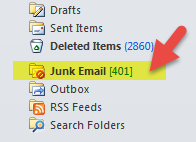
You and your organization rely on the smooth flow of communication between members to share important information. If your emails are being blocked or identified as spam, it creates a disconnect in your organization because important details may be missed. All email clients now have automatic spam filters that rate every incoming message according to set criteria to determine whether or not they might be spam.While it isn't possible to predict every factor an email client uses to identify spam, it is possible to adopt some basic practices to help avoid having your organization's messages get blocked or get relegated to the junk folder.

Know what spam sounds like

Spam filters check the entire content of your message and detect certain factors, phrases, and wording they regard as spam and then score your email. The filters analysis is largely based on what others have identified as spam in the past. If your message reads too much like previously identified spam mail, they will mark it as spam as well. So how does spam exactly sound? Think about all the phrases all those emails you move to your junk mail contain. Talking about large sums of money, including words like 'free' or using 'dollar signs' in your subject line, excessive use of exclamation points, all are indicators of what is considered a possible spam message. SpamAssassin, a mail filter used to identify spam shared a sample set of criteria that if found in your email results in a higher spam score:
  • Money back guarantee (2.051 points)
  • Contains urgent matter (.288 points)
  • Talks about lots of money (.193 points)
  • Describes some sort of breakthrough (.232 points)
  • Looks like a mortgage pitch (.297 points)
After accumulating all points, if your spam score exceeds a certain threshold, your email will go directly to the recipients junk folder.

Know what spam looks like

Your words aren’t the only thing that gets your messages marked as spam. The appearance of the email can also trigger the spam filters. Things like brightly colored fonts, image to text ratio, emails containing large attachments, all are factors that lead your email directly to the junk folder.

Let's consider the following legitimate email:

“Our Rotary Club is on the verge of an IMPORTANT BREAKTHROUGH!!!! Over the last decade we have RAISED almost $800,000 from the community to help pay-off the outstanding mortgage on the recreation center. We NEED TO RAISE ANOTHER $15,000 BY THE END OF THIS YEAR in order to set our fundraising record!! If we manage to do this, the state charity fund will MATCH our 2015 donations DOLLAR FOR DOLLAR and invest that sum back into much needed community improvements!!!!! Wouldn’t it be nice to get some of our TAX MONEY BACK? Our town needs this money and we NEED YOUR HELP! Together, we can make history! Help us today!!!!!!!!!!!!!!!!!.” 

Clearly, this message is an important one for the club and while the thought behind capitalizing, highlighting and using different font sizes certain phrases might be to draw attention to those points, the reality is, that by doing so, you increase the risk of low email delivery rates. The use bright of colors, especially red and green and using fonts that are too big or small are triggers that flag emails as spam.

Avoid sounding like an ad. Skip the sales pitch language whenever possible, reduce technical jargon and keep your message as simple as you can. The same concept also applies to your bulletin. Check out our Best Practices section for bulletins to learn more about how you can ensure you're sending filter friendly bulletins.

Spam filters also look behind the visible text and images, at the source code of your message. If your email is formatted with buggy HTML the spam filters might flag it as malicious code, which is why we never recommend copying content directly out of Microsoft Word to an email editor, but rather pasting your content from Word to a program like Notepad first, and then to your email editor. This is because when you paste content directly from a software like Word, you unknowingly also copy all the invisible formatting code used by that software. Not to worry! You can still prepare your content in Microsoft Word. Just follow the instructions we have on how to safely paste your content into the ClubRunner Editor window.

When you use ClubRunner to send your emails to members, your message is sent through our servers and we take great care to ensure that our sender reputation remain high with ISP's. We'll always do everything we can to combat factors that we can control to reduce spam scores but for more information on dealing with spam or blocked emails, visit our knowledgebase.

Using ClubRunner to Improve your Fundraising Efforts

Fundraisers are the fuel that keep your service club’s engine running. The dollars they raise are a tangible indication of your ability to perform good work in the community and of the goodwill and awareness the community has for your mission. There are multiple ways to fundraise for a good cause but did you know through your ClubRunner website, you can collect donations year round? Setup is simple and you can easily run an online fundraiser campaign to support your various initiatives.

Create a fundraiser campaign as an event 

No doubt a creative use of the Event Planner module, you aren't limited to creating standalone events through it only! In fact, you can also use it to create and organize ongoing campaigns such as fundraisers and community appeals. How so?

1) Simply create an event as usual and set your start and end dates and proceed to add a description of your campaign. . Within the Event Type field, select Fundraiser.


2) To get the maximum visibility, be sure to set the 'Show Event in Home Page', 'Show in Calendar', 'Show in Events List', 'Show in Bulletin' Bulletin' and 'Display Social Media Share Bar' options to Yes. Doing so will ensure that the event details are listed and appear in as many places as possible.

The social media share bar will allow visitors to publicize this event via different social channels such as Facebook, Twitter, Pinterest, LinkedIn, Email and more.


3) Edit the 'Registration Options' to ensure the event is open to members of the public, so that you can have non-members support your campaign.

4) Set a nominal fee for the fundraiser within the Event Fee field, and select your payment method. If you have the Online Payment and eCommerce module activated, non-members and members can donate to your cause easily via credit card. Members also have the option to pay by check. As an event chair, you can also collect check payments from non-members and add them as supporters through the Admin area.


5) Once the event is created, you can display it on your home page or custom page using the Upcoming Events Widget or a Custom widget. Visitors can then see, register and donate to your cause easily and even share the event.


Make use of donation buttons
 
If your club has been set up to accept online payments, another way to collect donations is to add a 'Donate Now' button on your homepage. Website visitors can easily click on the button to make a donation in any sum they wish and you can just as easily direct people to your website to do so. Follow these directions to set up a Donation button if you use Sage Payment solutions to process your payments. If your club makes use of Beanstream, follow the instructions here to set up a donation form.

You can add this button on your home page, custom page or even a site page and can then direct your audience to this page by promoting your campaign.

If your club is located outside of North America, contact our support team on the options available to get Online Payment setup.


Report your progress

A common mistake made by charities and fundraising committees is failing to update their donors on the progress of the project. If someone is willing to make a donation, they are clearly invested and interested in your project. It's important to keep your donors aware of how the campaign is going and to have them join in the celebration of benchmarks along the way. They after all are your biggest advocates.

Consider keeping them informed through special editions of your bulletin, or show potential donors how much more you need to collect through visuals such as a fundraising meter.

Does your club collect donations year round? Have tips to share with other clubs? Comment below and let's start a conversation.