Welcome to ClubRunner's BlogSpot


Welcome to ClubRunner's BlogSpot - the place to stay on the pulse of hot off the press news updates about product developments, service announcements, local events and so much more!

Also, you can initiate discussions and share information among fellow ClubRunner users.

Your feedback is always welcome and necessary to help us make ClubRunner better. We want to know what you like, what you don't and what's on your wish list. Please let us know how we can enhance our service.

Friday, September 25, 2009

Feature Update: Event Planner

You asked and we listened! The newly updated Event Planner feature now gives you the ability to decline attendance to an event, add comments to each registrant and select multiple members to attend or decline an event at once.

If you have an access level of Club Editor or greater, once you login to your site and select desired event, you can view all club members who received an invitation to that event and manage your registration list.

For more information about this feature update, please contact ClubRunner Support.


ClubRunner eSupport Center

ClubRunner now has available to you a new and improved support system, where you can get more information and get more familiar with the features and functionality of your club site.
You can submit a support ticket, search the knowledgebase or download helpful “how to” documents, all in a user friendly interface!

Check out the ClubRunner eSupport Center and bookmark the link for quick reference in the future.

Friday, September 18, 2009

Week 12: Tip of the Week

#12: Did you know that you can get new members updated and involved in club activities quickly through the New Member Orientation?

When new members join your club, executives may wonder how to get them involved; and the new members may be wondering what their next steps should be to get better acquainted and inducted into the club. With the New Member Orientation feature, you can identify and set up a list of tasks for these members to complete. The membership chair and any other executives can monitor this list and the progress of that member, and even assign each task to an existing member of the club to be responsible for. Both the new member and the assigned member see this task in their commitments section on their profile and at the bottom of their bulletin, until that task is completed.

To set up your orientation program, follow the instructions below:
1. Once logged into the Admin page, click on ”New Member Orientation” under Membership Manager
2. If you have no activities listed, click on “Add New Activity”. If you have activities listed, you will need to click on “List All Activities” first
3. Enter the name of the activity and click “Save”
4. The new activity will now be listed last. Click “Return” to get to go back to the New Members Program listing
5. Repeat as needed

Once all your tasks have been set up, you can now enroll your new members in the orientation program. To do this, follow these steps:
1. From the New Members Program Listing, click on add new member
2. Select all members that you’d like to add and click “Save”. This will generate the list of all tasks for that member.
3. To assign a task to an existing member, click Edit and select that member from the drop down menu. They will now see this as a commitment in their bulletin.

New Feature: Active Member Update Request

Need members to update their profile? You can now send them a request to do so! The Active Member Request Update feature allows you to review how recently your members’ profiles were updated, and by whom. Send out an email to each member displaying their current profile details and request an update if required. In order to access this feature, you must have an access level of Club Executive (level 50) or greater.

Once the email has been sent to the member, it will appear within their inbox exactly as it would if they were logged into the ClubRunner system. If all information is correct, the member doesn’t need to do anything. To make any changes to the information, they simply click on the Update button located at the top and bottom of the email message, which takes members to a password page, followed by a direct link to their profile.

Visit the official ClubRunner website for more information about this feature.

Friday, September 4, 2009

Week 11: Tip of the Week

#11. Did you know that if you’re a secretary, you can report your club’s attendance to the district* with a few simple mouse clicks?

Click 1: Under Meeting Services, click on Input “Attendance” for the current year

Click 2: Verify each attendance list by clicking on “Attendance” next to the appropriate date (optional)

Click 3: Click on Report Month Year attendance

Click 4: Click on Close Month and Update District


* Note: You can only update your district if they are online using ClubRunner.

Friday, August 28, 2009

Week 10: Tip of the Week

#10: Did you know that you can create up to 30 custom fields within your member profile?

Looking to capture unique information for your club that is not already set in the regular member profile template? If you have site administrator access, you are able to create custom fields to capture dates, flags (yes or no) and characters (for regular text) to allow for a more detailed club directory. Once these fields have been added, all members will have access to update their member profile.

Tuesday, August 25, 2009

Birthday and Anniversary Report Update

There has been a recent update to the Birthday and Anniversary Report as requested by our users. Now, you can generate reports for Club Anniversaries as well as member birthdays and anniversaries. This new report will provide the induction date and number of years of membership. This information is helpful for member appreciation and great to use in the eBulletin!

Friday, August 21, 2009

Week 9: Tip of the Week

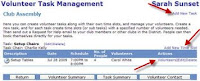
#9. Did you know that you can use the Event Manager to create and monitor volunteer lists? Once you create an event for posting on your club or district’s site, you can set up tasks and request for volunteers! Use this tool to keep track of all action items, solicit help for your event or promote teamwork and collaboration by getting members to sign up for committees. To add tasks, create volunteer lists and monitor its activity, simply follow the steps below:

1. Click on services for the desired event
2. Under Volunteer Services, click on “Tasks & Volunteers Management”
3. Click on “Add New Task”
4. Enter the required information as requested in the popup box
5. Once the new task list listed, click on “Add New Time Slot” and enter the details requested
For more information about managing, viewing and reporting on your events, please visit the online help section on your club or district’s site.

Thursday, August 20, 2009

Are You Maximizing ClubRunner?

Since ClubRunner is such a robust tool and has many functions, it may be easy to overlook some key features that will help you boost your club’s communications. If you’re not already, be sure to take advantage of:

Dues and Billing
Create bills, generate invoices and send them to members of your club

Committees Management
Organize and manage your committees by creating lists of all yearly and standing committees within your club or district, along with the corresponding chairpersons, secretaries and members.

Report Data Changes to RI
Automatically send an email to Rotary International to report any member data changes within your club

Birthday and Anniversary Reports
Create reports to commemorate member’s birthday’s, wedding or Rotary anniversaries

Customized Attendance Reports
Create a report to view your club’s attendance for a specific time frame

Add/Edit Current and Next Year Executives & Directors
Update your club or district’s executives and directors listing so it will show on your home page

If you’d like to learn more about how to use any of these features, there’s a free online training session available. Click here to find out when.

Thursday, August 13, 2009

Week 8: Tip of the Week

#8. Did you know that you can run various reports for your club or district to celebrate birthdays and anniversaries as well as tracking club monthly and yearly attendance? In the Membership Manager and Meeting Services section of your admin page, you will find links that will lead you to create general or customized reports any time you need to. If you need to report changes to Rotary International, there’s a link for that too! An email will be sent directly to Rotary International with any member data changes instantly.

If you have any suggestions about reports you’d like to have available in the future, please let us know.